
If your Kuwait Mobile ID works as a digital Civil ID but cannot approve supported online services, you may need to upgrade the identity and enable the Authentication feature. The current mobile route uses your smart Civil ID, the phone’s NFC reader, your private Mobile ID PIN and a face-verification check.
Quick answer: Open Kuwait Mobile ID, go to Authenticate & Sign, choose Upgrade Identity, select the mobile-phone method, scan the smart Civil ID with NFC, enter your PIN, finish face verification, accept both agreements and submit.
This guide was checked against the official PACI Kuwait Mobile ID authentication instructions and the app screens available on 27 August 2026. App wording and screen layouts can change, so follow any newer direction displayed inside the official app.
What Does “Upgrade Identity” Mean?
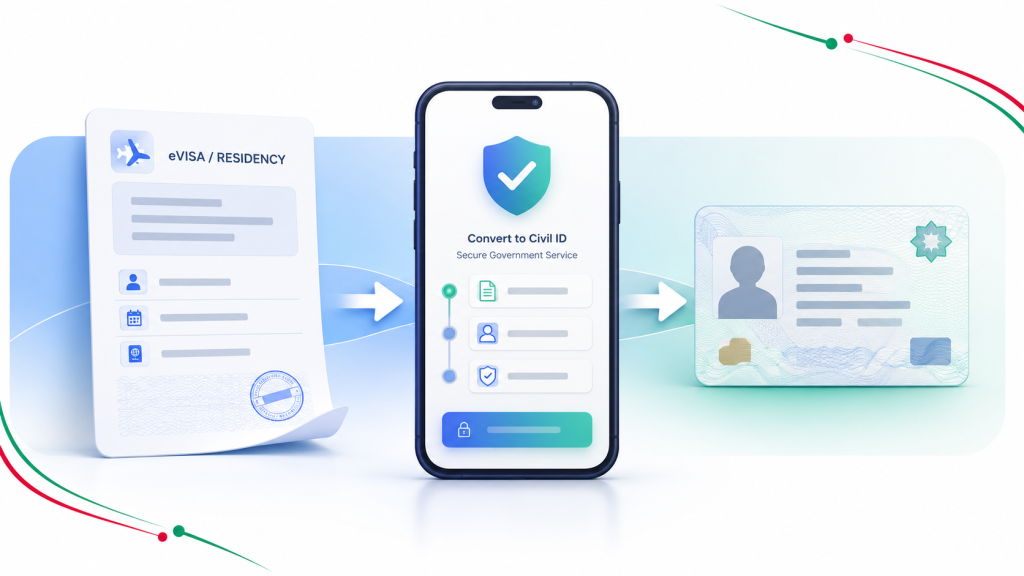
Upgrading the identity activates online authentication for supported government, banking and private-sector services. It is different from simply renewing or updating the Civil ID details shown inside the app.
| Action | What it does |
|---|---|
| Upgrade Identity | Electronic-signature activation | PACI announced that electronic signature can now be activated through Kuwait Mobile ID without visiting a self-service kiosk. Follow the current instructions displayed inside the official app. |
| Update or renew Mobile ID data | Refreshes Civil ID information after a renewal or a new Civil ID issuance request. |
| Electronic-signature activation | PACI announced a separate in-app electronic-signature activation process on 13 July 2026 that does not require visiting a self-service kiosk. Follow the current instructions inside the official app. |
If your purpose is only to refresh renewed Civil ID information, use the app’s update option instead. PACI publishes a separate official process for updating Mobile ID data.
Before You Start
- An active and already registered Kuwait Mobile ID.
- Your valid smart Civil ID card.
- An NFC-enabled phone for the mobile upgrade route.
- Your private Kuwait Mobile ID PIN.
- A working front camera and stable internet connection.
- Moderate light facing you, without strong light behind your head.
- A Kuwait mobile number that can receive an SMS if PACI requests an OTP.
Never share your Mobile ID PIN, OTP, Civil ID image, QR code or an uncensored app screenshot. If you have not registered the app yet, first read How to Register Kuwait Mobile ID for New Residents.
Mobile Upgrade or PACI Kiosk?
| Your goal or situation | Recommended route |
|---|---|
| Enable ordinary online authentication from a compatible phone | Use Upgrade Identity through your Mobile Phone. |
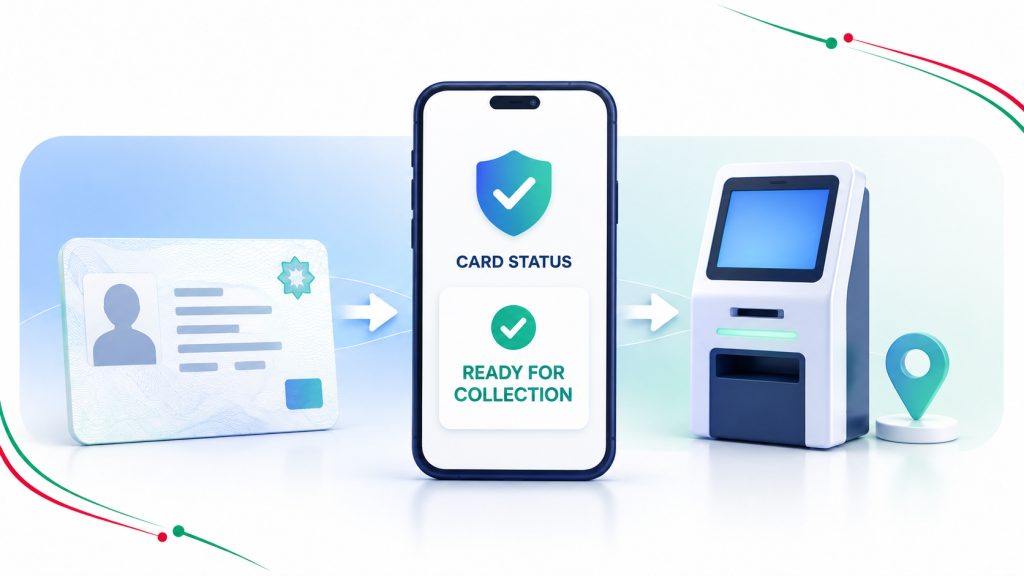
| The phone has no NFC or repeatedly cannot read the smart card | Use a listed PACI Mobile ID self-service kiosk or PACI help channel. |
| You need electronic-signature activation | Follow the current in-app electronic-signature activation process. If the option is unavailable or fails, contact PACI through an official support channel. |
Prefer a quick visual guide? Watch this step-by-step Kuwait Mobile ID upgrade tutorial in English, Nepali and Hindi.
How to Upgrade Kuwait Mobile ID
Step 1: Open Upgrade Identity and tap Proceed
Open the official Kuwait Mobile ID app and select Authenticate & Sign at the bottom. Open Upgrade Identity. When the confirmation message asks whether you want to enable Authentication, tap Proceed.
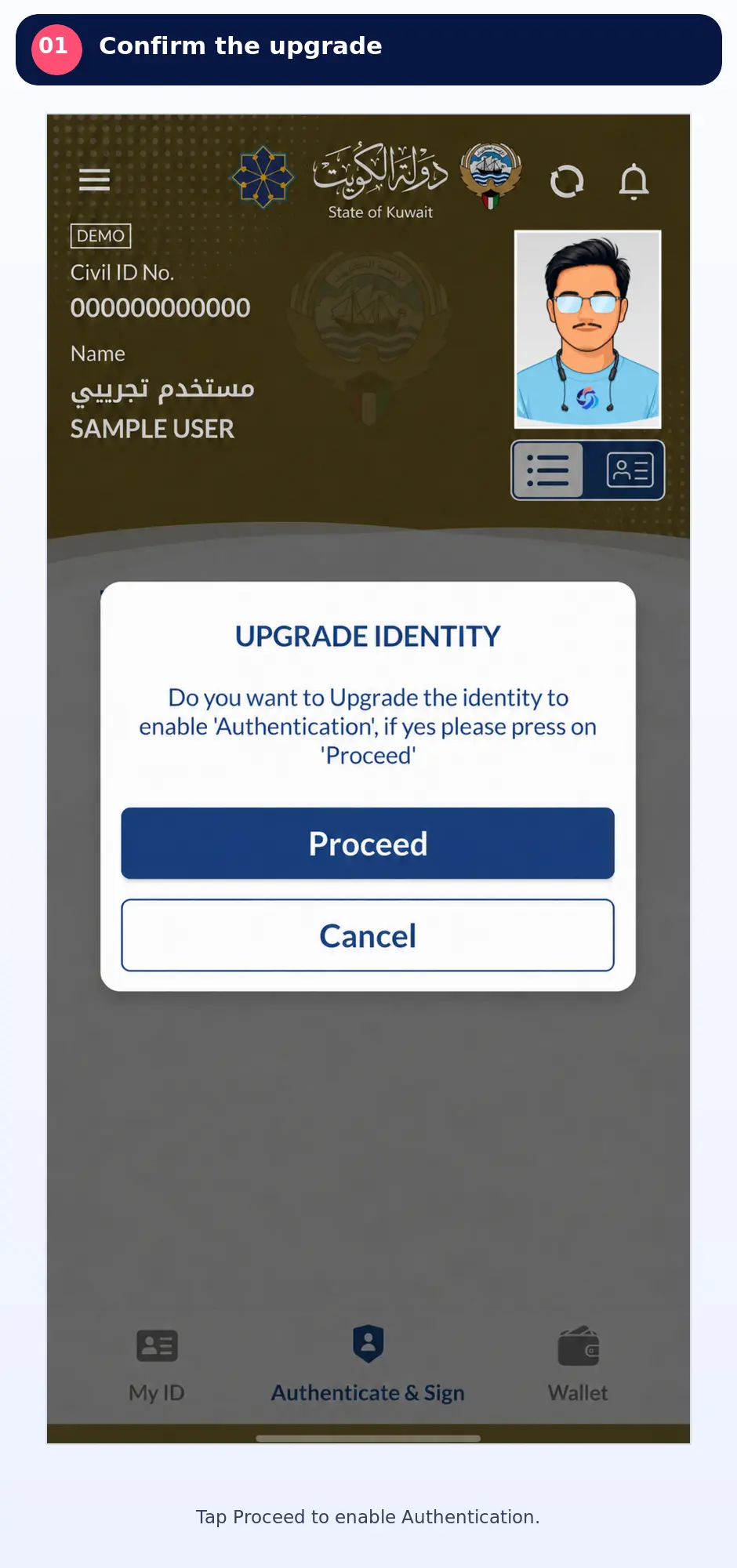
If your version still uses the side menu, open the menu and select Upgrade Identity. PACI’s official instructions describe that route.
Step 2: Choose the mobile-phone upgrade method
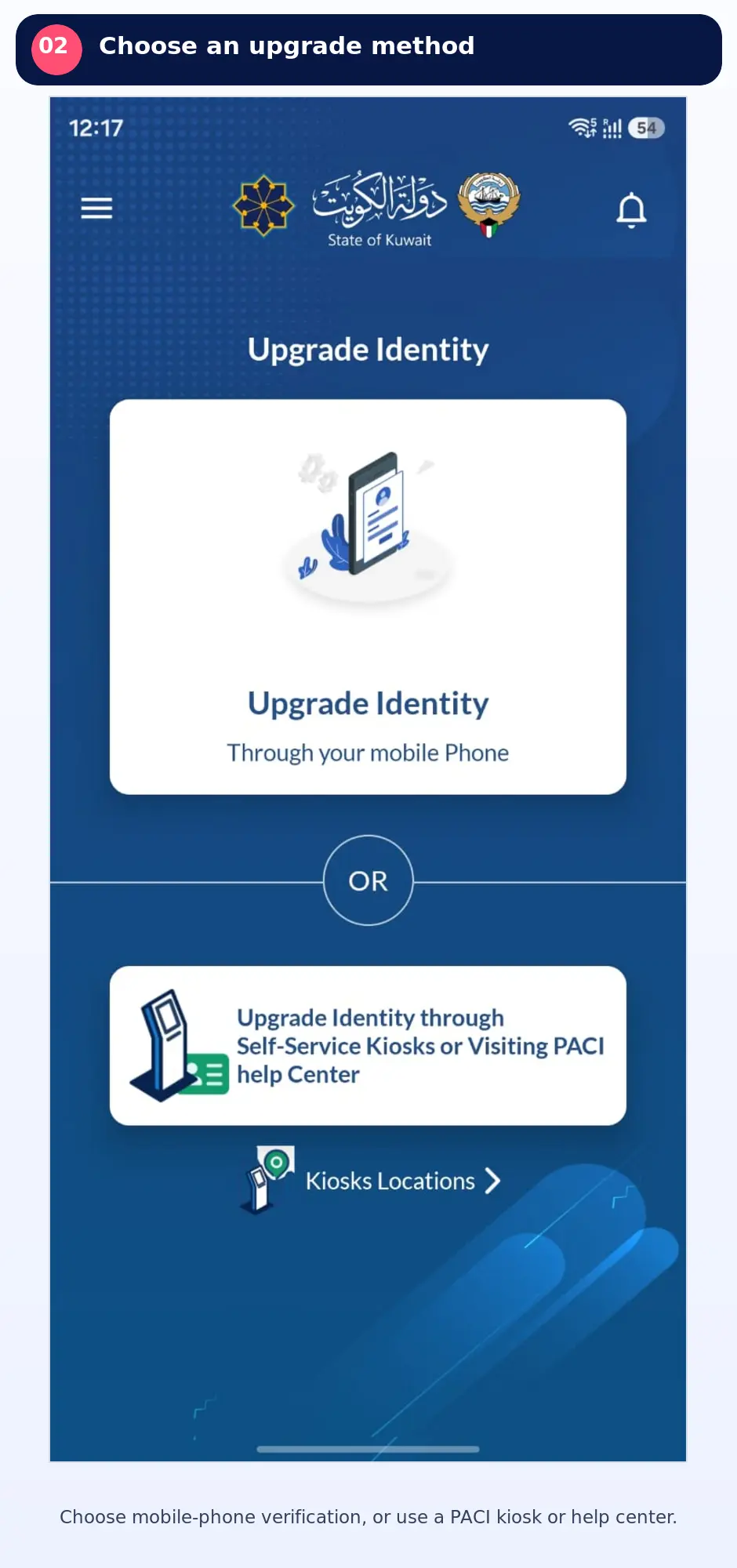
Select Upgrade Identity through your Mobile Phone. The other option directs users to self-service kiosks or a PACI help center.
Step 3: Scan the smart Civil ID with NFC
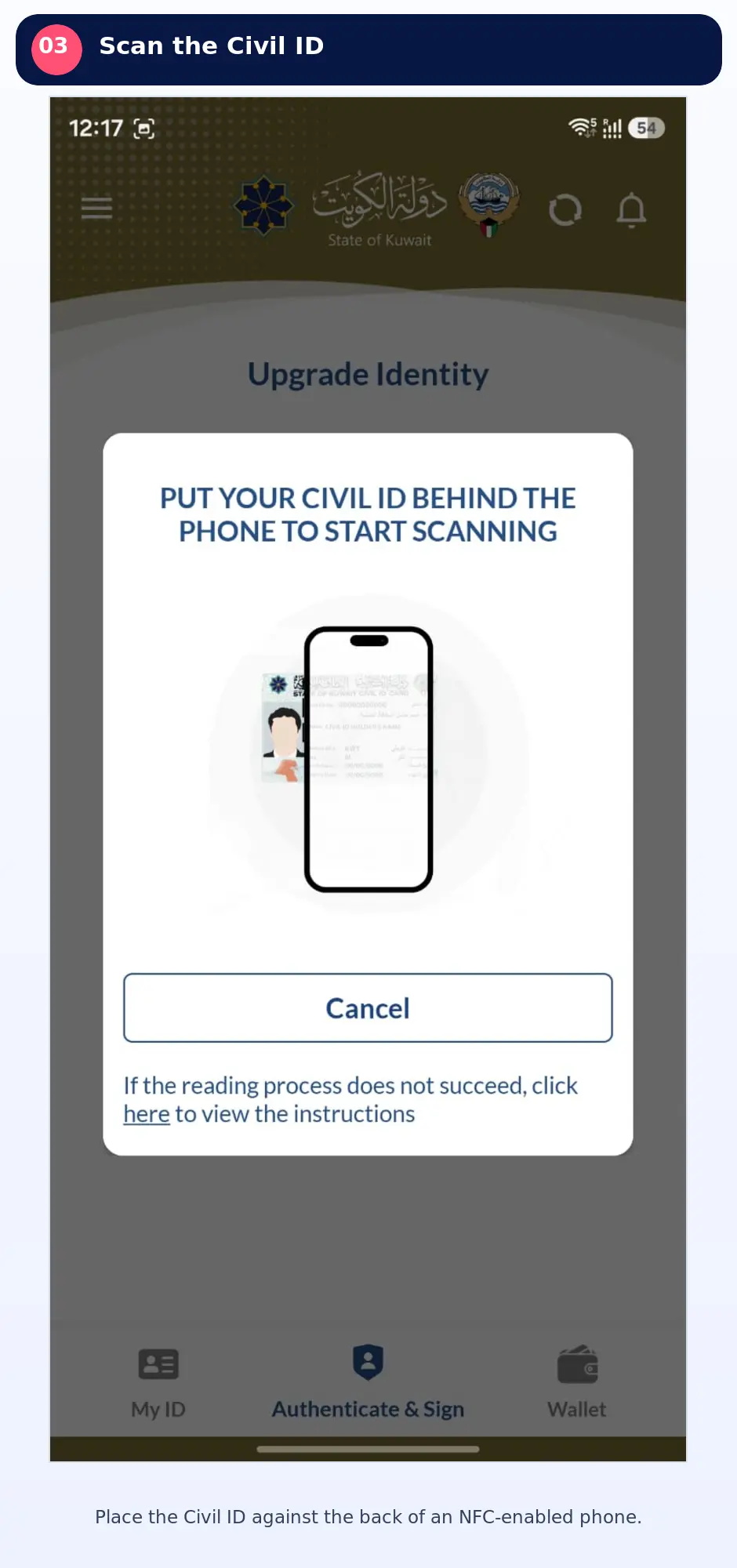
When the NFC prompt appears, place the smart Civil ID flat against the back of the phone. The NFC reader is commonly near the upper or middle part of the device. Keep the card and phone still until the reading finishes.
Step 4: Enter your Mobile ID PIN
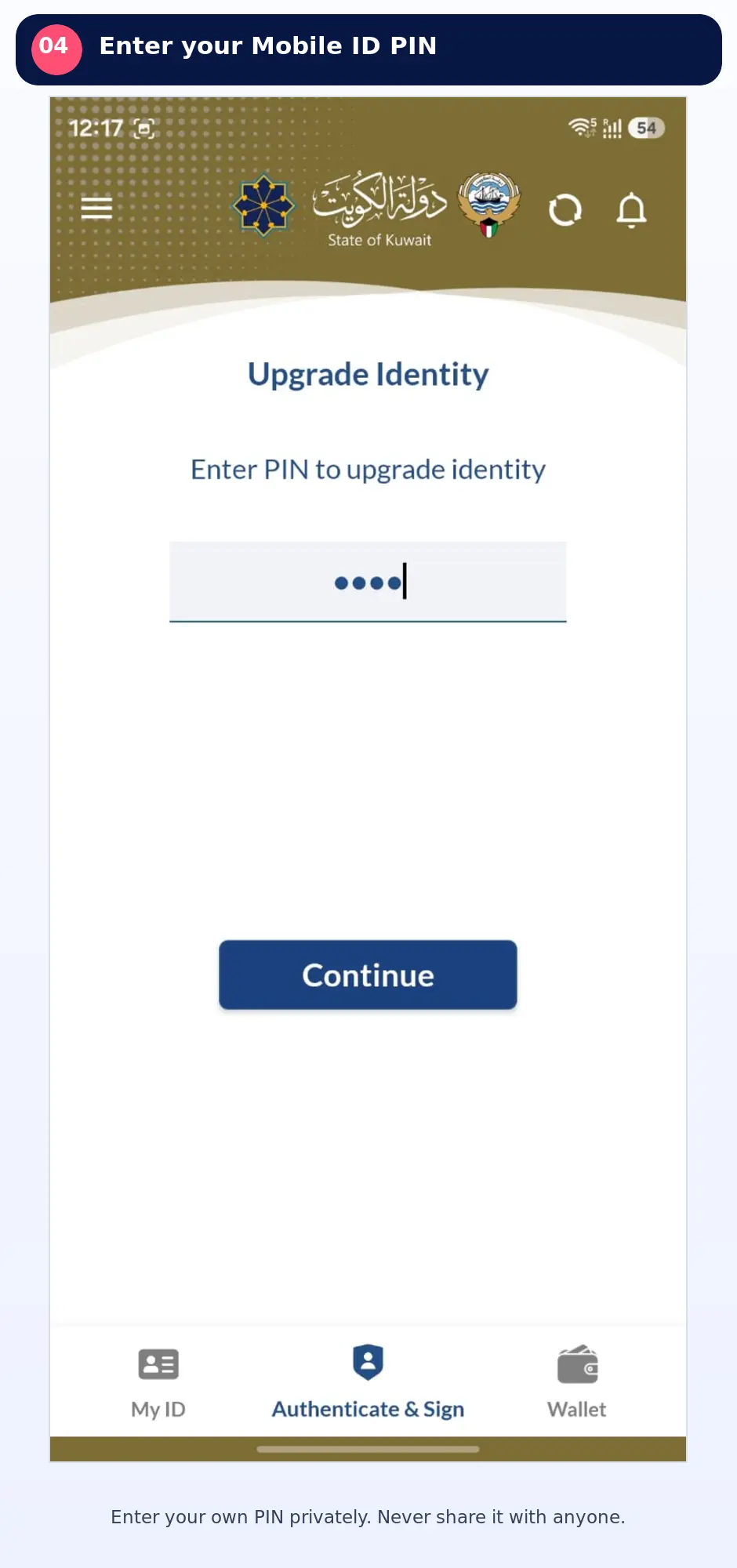
Enter the PIN you created for your own Kuwait Mobile ID, then tap Continue. Cover the screen while typing in a public place. SOAKJAM, PACI support staff and legitimate service providers should never ask you to send this PIN in a message.
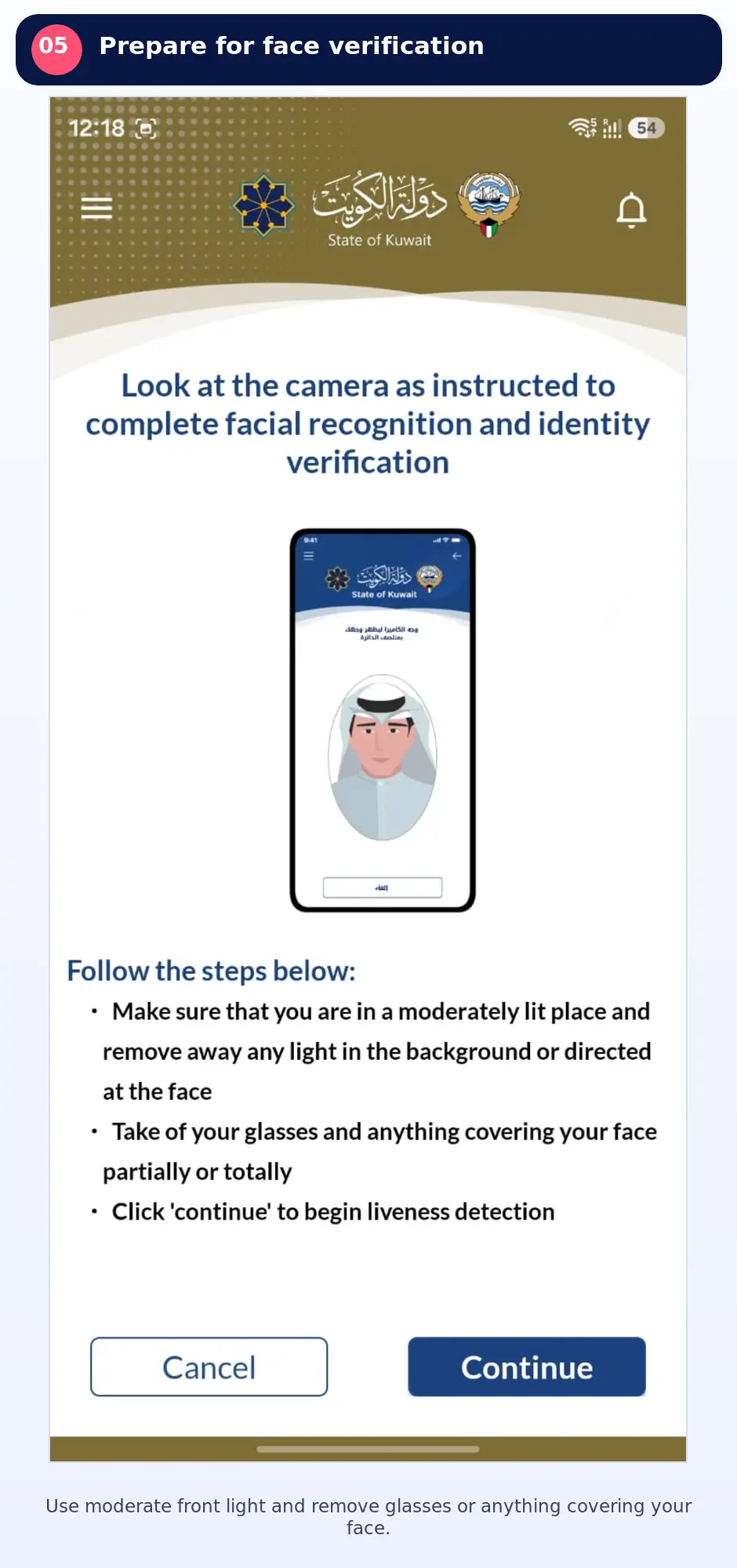
Step 5: Prepare for face verification
Stand in moderate front light. Avoid a dark room, strong backlight or a shadow across the face. Remove glasses, sunglasses, a mask, cap or anything else that covers part of the face. Hold the phone close to eye level.
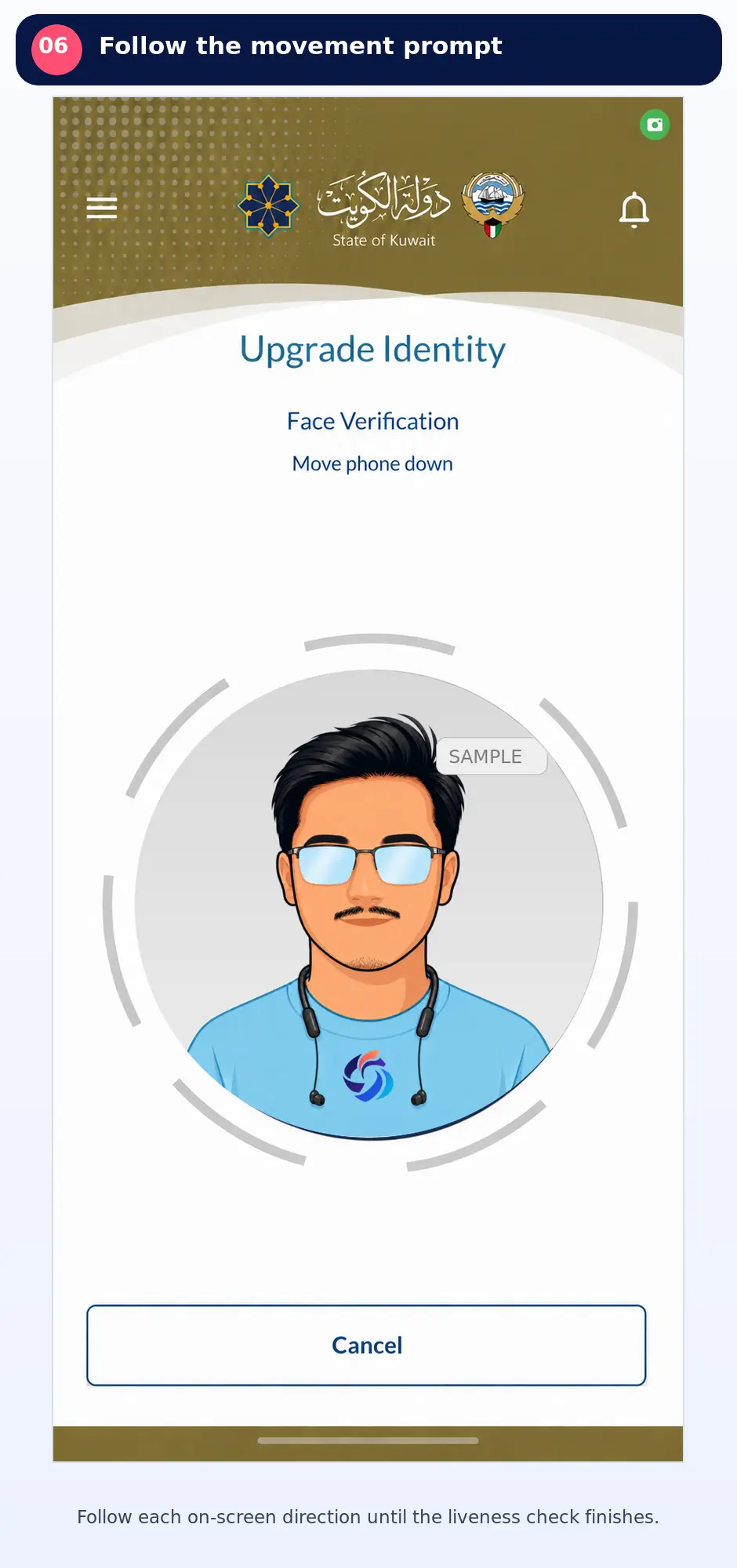
Step 6: Follow every face-verification movement prompt
The live camera opens and shows your face inside the guide. The app may ask you to move the phone or your face in a particular direction. Move slowly, keep your face inside the guide and follow every prompt until the capture finishes. Do not switch apps or cover the camera during this check.
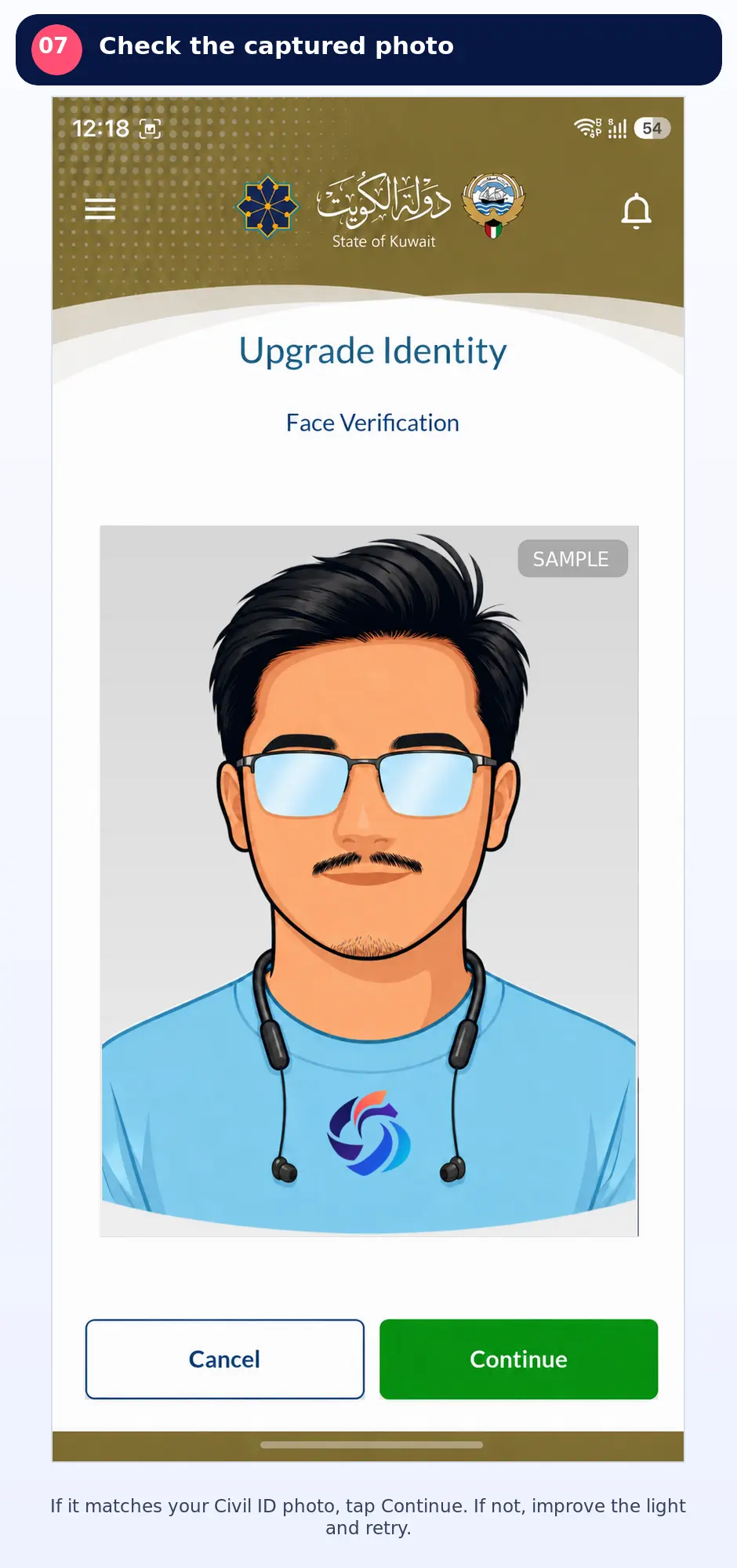
Step 7: Check the captured photo
After a successful capture, your photo appears on screen. If it matches the face on your Civil ID, the Continue button turns green; tap it to proceed. If the app says that your face does not match your Civil ID photo, improve the front lighting, remove glasses, keep your face straight and repeat the capture.
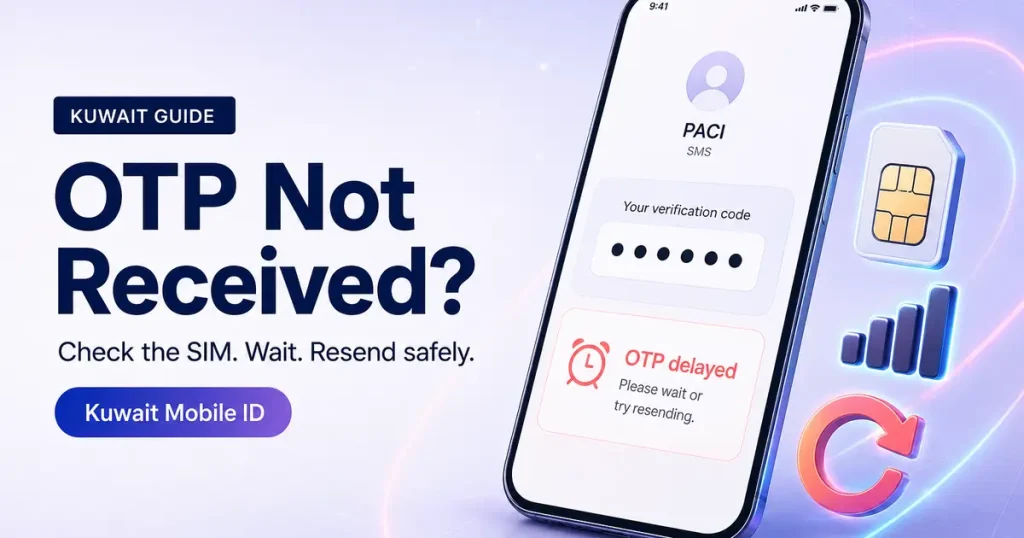
Depending on the app version and verification route, PACI may also send an OTP by SMS. If an OTP screen appears, enter only the code received for your own request. If it does not arrive, use SOAKJAM’s Kuwait Mobile ID OTP troubleshooting guide.
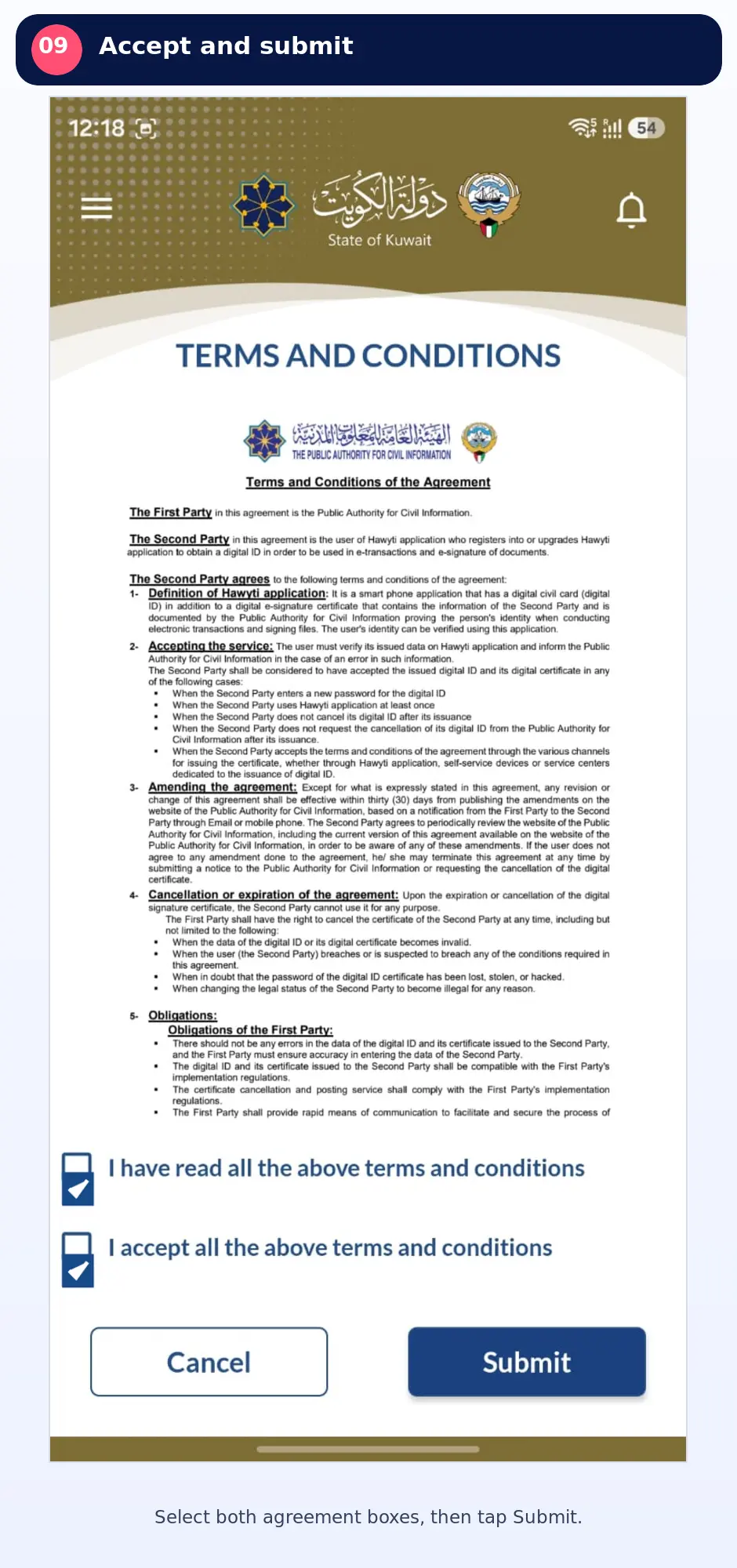
Step 8: Read both agreements
Read the displayed terms and conditions before accepting them. Scroll if necessary and make sure you understand both agreement statements.
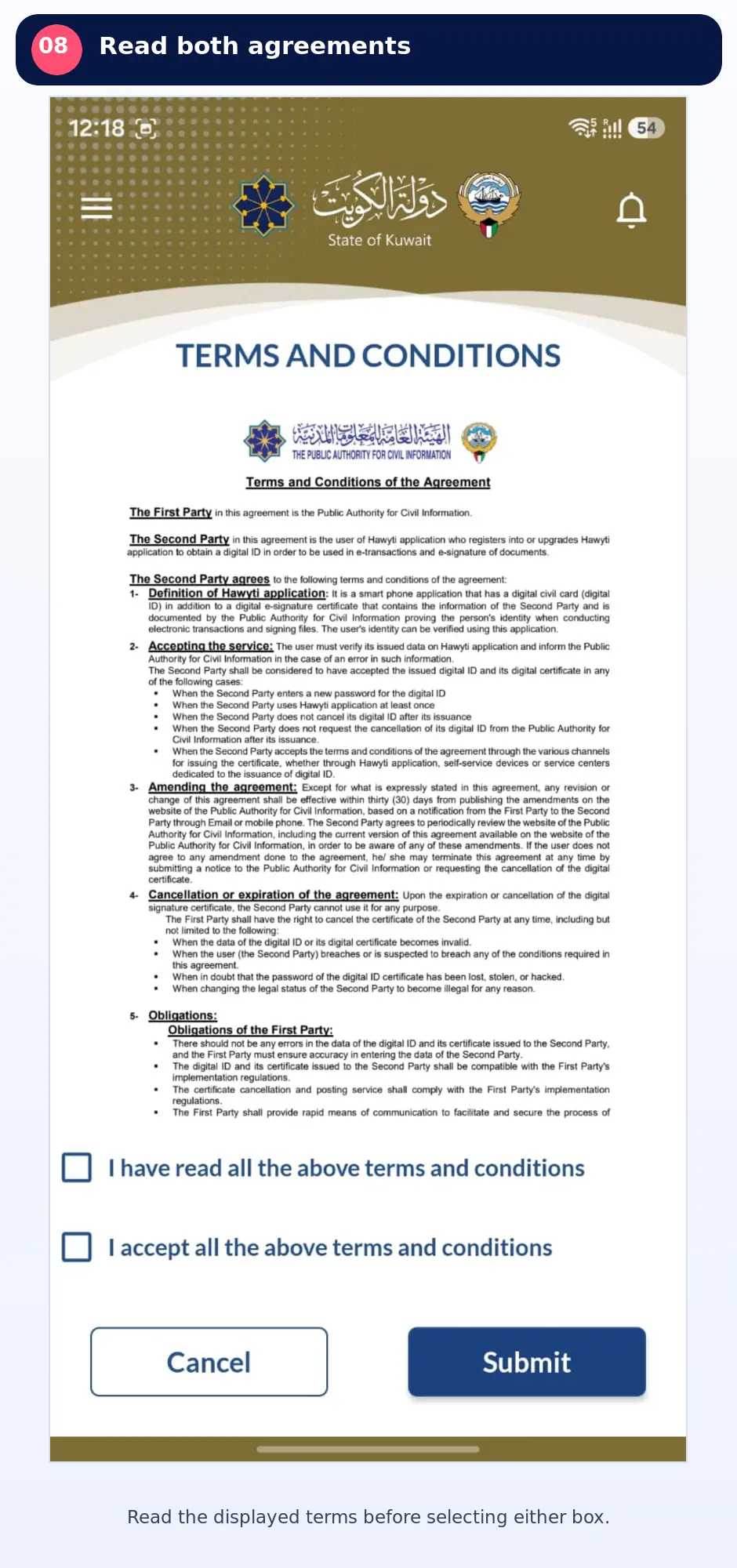
Step 9: Select both boxes and submit
Select both agreement boxes. When both check marks are visible, tap Submit. Tap once and wait for the app to finish; repeated taps do not make verification faster.
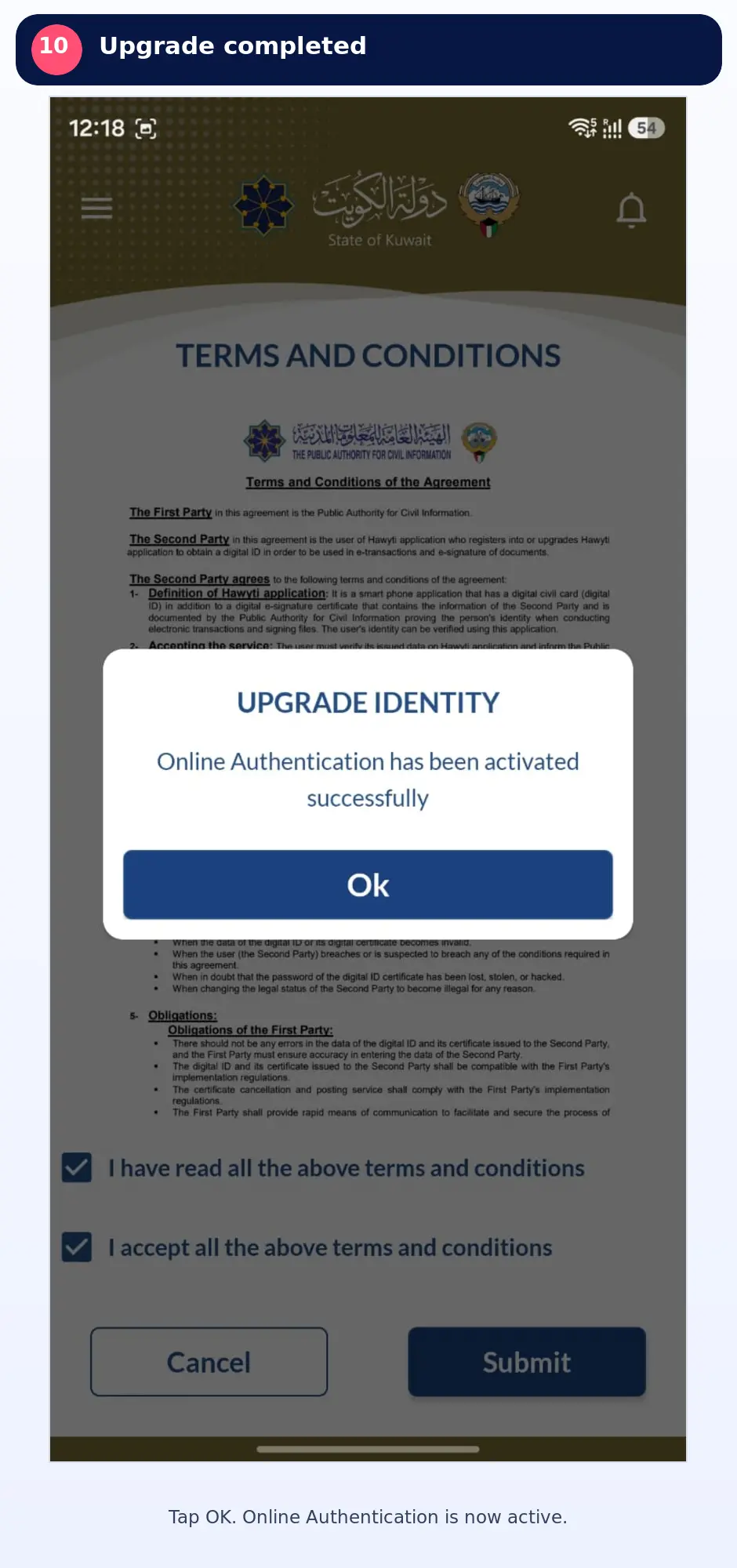
Step 10: Confirm that Authentication is active
A successful completion message states that online Authentication has been activated. Tap OK. You can now return to Authenticate & Sign when a supported service sends an approval request.
If the Civil ID Will Not Scan
- Confirm that the phone supports NFC and that NFC is enabled.
- Remove a thick phone case, magnetic wallet or metal accessory.
- Move the card slowly across the upper and middle back of the phone to locate the reader.
- Keep the card flat and still for several seconds.
- Close and reopen the official app, then try again with a stable connection.
- Update Kuwait Mobile ID from the official app store if an update is available.
- If reading still fails, use the instructions link shown in the app or choose a listed PACI Mobile ID kiosk.
If Face Verification Fails
- Clean the front camera lens.
- Face a soft light and avoid a bright window behind you.
- Remove glasses and anything covering the face.
- Keep the phone steady and near eye level.
- Follow the movement prompt slowly instead of making a fast movement.
- Restart the app and try once more in a quiet, well-lit place.
- If the same error continues, use PACI’s official Mobile ID support channel.
Privacy and Safety
- Install or update Kuwait Mobile ID only through the official store links provided by PACI.
- Never share the Mobile ID PIN or an SMS OTP.
- Do not publish a real face-verification screen, Civil ID, QR code or Authentication request.
- Read the service name and request details before approving an Authentication request.
- Decline an unexpected request and contact the service provider through its official channel.
- On a lost or stolen phone, follow PACI’s official guidance to register on a replacement phone or cancel the old Mobile ID.
All screenshots in this article are privacy-safe recreations based on the supplied app screens. No real Civil ID number, PIN, OTP, face, QR code, mobile number or private account information is shown. SOAKJAM is an independent educational website and is not affiliated with PACI or the Government of Kuwait.
Frequently Asked Questions
Can I upgrade Kuwait Mobile ID without NFC?
This walkthrough uses the app’s NFC mobile-phone route. If your phone cannot read the smart Civil ID, the app also shows the self-service kiosk or PACI help-center option.
Does the mobile upgrade enable digital signature?
Do not assume that the ordinary authentication upgrade automatically activates electronic signature. PACI announced a separate in-app mechanism on 13 July 2026 that allows electronic-signature activation through Kuwait Mobile ID without visiting a self-service kiosk. Follow the current instructions displayed inside the app.
Why does the app ask for face movement?
The movement prompt is a liveness check used to confirm that a real person is present instead of a still photograph.
Should I wear glasses during face verification?
No. The app screen supplied for this guide instructs users to remove glasses and anything covering the face. The avatar shown in SOAKJAM’s privacy-safe illustration is not an example of what to wear during the actual scan.
Why did I not receive an OTP?
The exact flow can vary. If PACI requests an SMS code and it does not arrive, check that the linked Kuwait SIM is active, wait for the full resend timer and confirm the sender before requesting another code.
What should I do after the success message?
Tap OK and return to Authenticate & Sign. Authentication requests will appear only when a supported service starts one.
Final Reminder
For the mobile authentication route, prepare your smart Civil ID, enable NFC, remember your private PIN and complete face verification in good light. Electronic-signature activation may use a separate in-app process. If an option is unavailable or fails, contact PACI through an official support channel.
Sources and References
- PACI — Activate the Authentication Feature in Kuwait Mobile ID
- PACI — Kuwait Mobile ID Frequently Asked Questions
- PACI — Mobile ID Self-Service Kiosk Locations
Transparency
Sources & references
Reviewed and updated
Editorial information
SOAKJAM articles are designed for clarity, useful context and transparent sourcing. Important facts should be checked against the linked primary sources.
Found an error, outdated detail or a useful source we should consider?