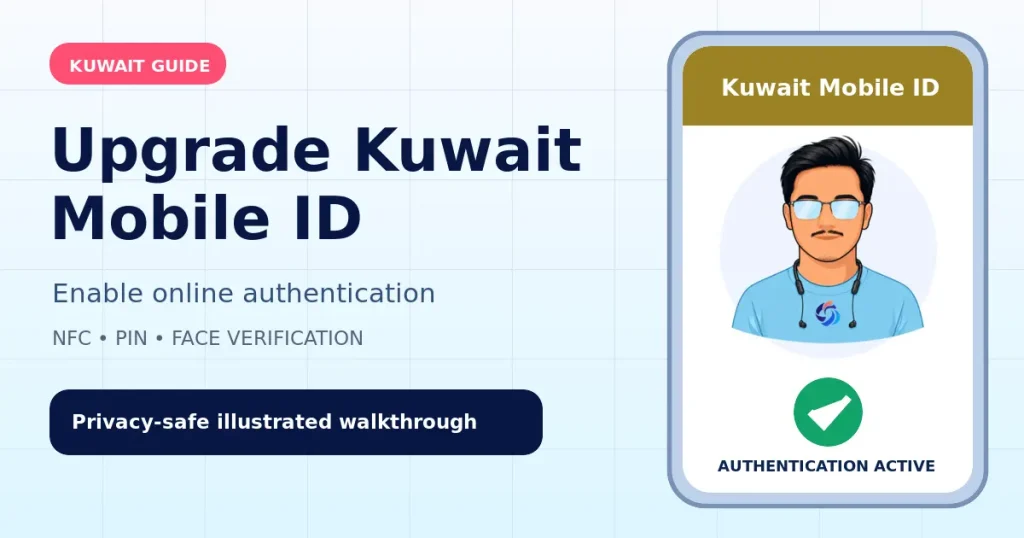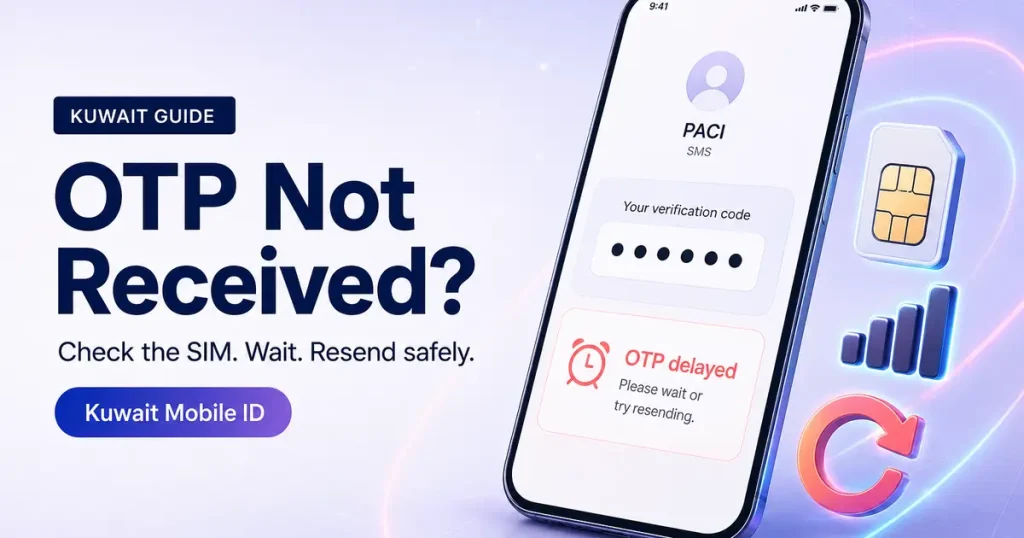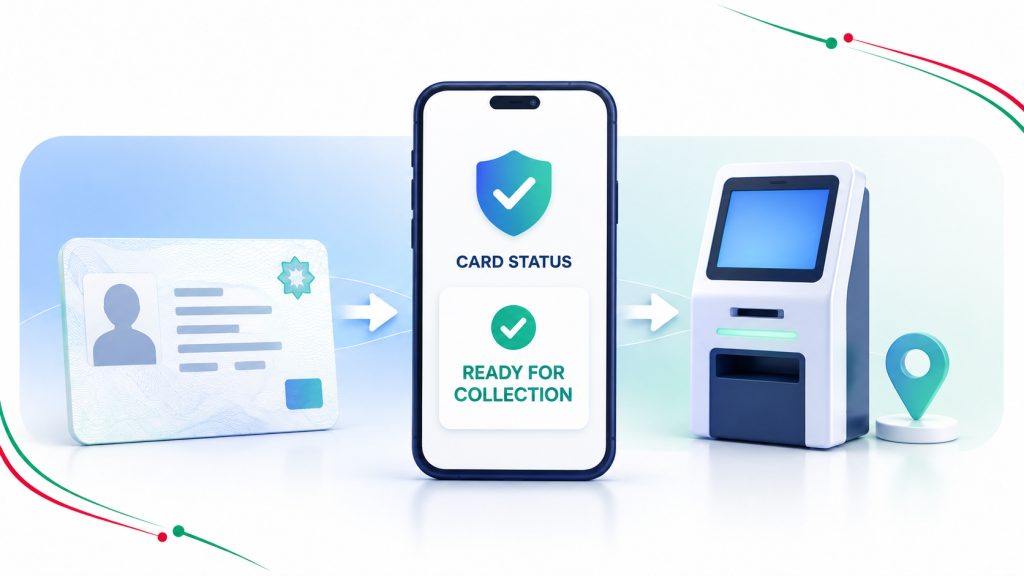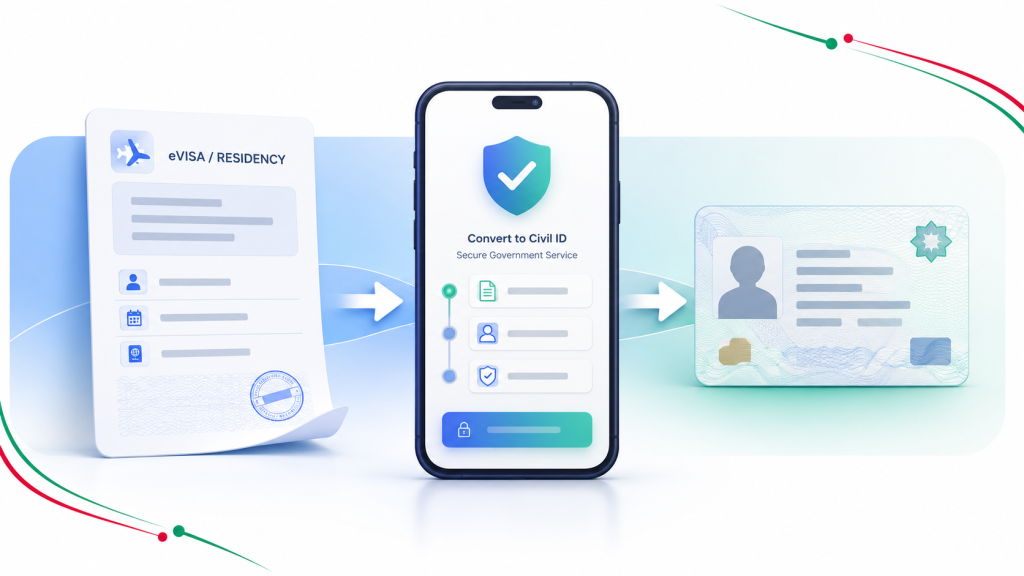

This guide explains how to register Kuwait Mobile ID on iPhone or Android, including the manual registration method for phones without NFC. Kuwait Mobile ID provides citizens and residents with a secure digital Civil ID for identity verification, supported e-services, authentication requests and government credentials.
This guide is especially useful for new residents whose Civil ID record has been created but whose physical card is still being printed. It also explains the manual registration method for phones without NFC.
All screenshots in this guide use permanent privacy covers. No real Civil ID number, passport number, mobile number, one-time password, PIN, face, QR code, card serial number, or employer information is visible.
Quick answer for newcomers: You can register Kuwait Mobile ID before collecting your first physical Civil ID card. Choose Registration Through your Mobile Phone, tap Enter Data Manually, enter your Civil ID number and passport number, and leave Card Serial No. blank. PACI’s current FAQ specifically says a new resident without the first physical card does not need to enter the card serial number.
Last checked against PACI’s official Kuwait Mobile ID instructions and FAQ on 12 August 2026. App screens and requirements can change, so follow any newer instructions shown inside the official app.
Before You Start
Prepare the following:
- Your 12-digit Civil ID number.
- Your passport number if you are not Kuwaiti.
- An email address you can access.
- A Kuwait mobile number that can receive SMS.
- A phone with a working front camera and internet connection.
- A private PIN that you can remember but other people cannot guess.
If you do not know your Civil ID number yet, first read How to Find Your Kuwait Civil ID Number Using the MOI Number.
If you want to check whether the physical card has been printed, read How to Check Kuwait Civil ID Status Online.
Important: Receiving a Civil ID number does not always mean the app can register you immediately. PACI’s Civil ID record must be available, and any required first-issuance or renewal fee must be completed. If registration does not work, wait for the government records to update and try again later.
Kuwait Mobile ID Registration With NFC or Without NFC
NFC lets a compatible phone read the chip inside a physical Civil ID card. It is convenient, but it is not required for everyone.
Use the route that matches your situation:
| Your situation | What to choose |
|---|---|
| You have an NFC phone and a printed smart Civil ID | Place the card behind the upper part of the phone when the app asks, or use manual entry if scanning fails. |
| Your phone does not have NFC | Tap Enter Data Manually. |
| You are a newcomer and your first physical card is not printed | Tap Enter Data Manually, enter your Civil ID and passport number, and leave Card Serial No. blank. |
| You need digital signature or strong-level authentication | Complete or upgrade registration through a PACI Mobile ID self-service kiosk. |
The app may warn that manual entry disables or limits authentication. This does not mean the Mobile ID cannot be issued. It means some authentication features may remain unavailable until the identity is upgraded. PACI says self-service kiosk registration provides the qualified verification level needed for strong authentication and digital signature.
How to Register Kuwait Mobile ID for New Residents
Step 1: Install the official Kuwait Mobile ID app
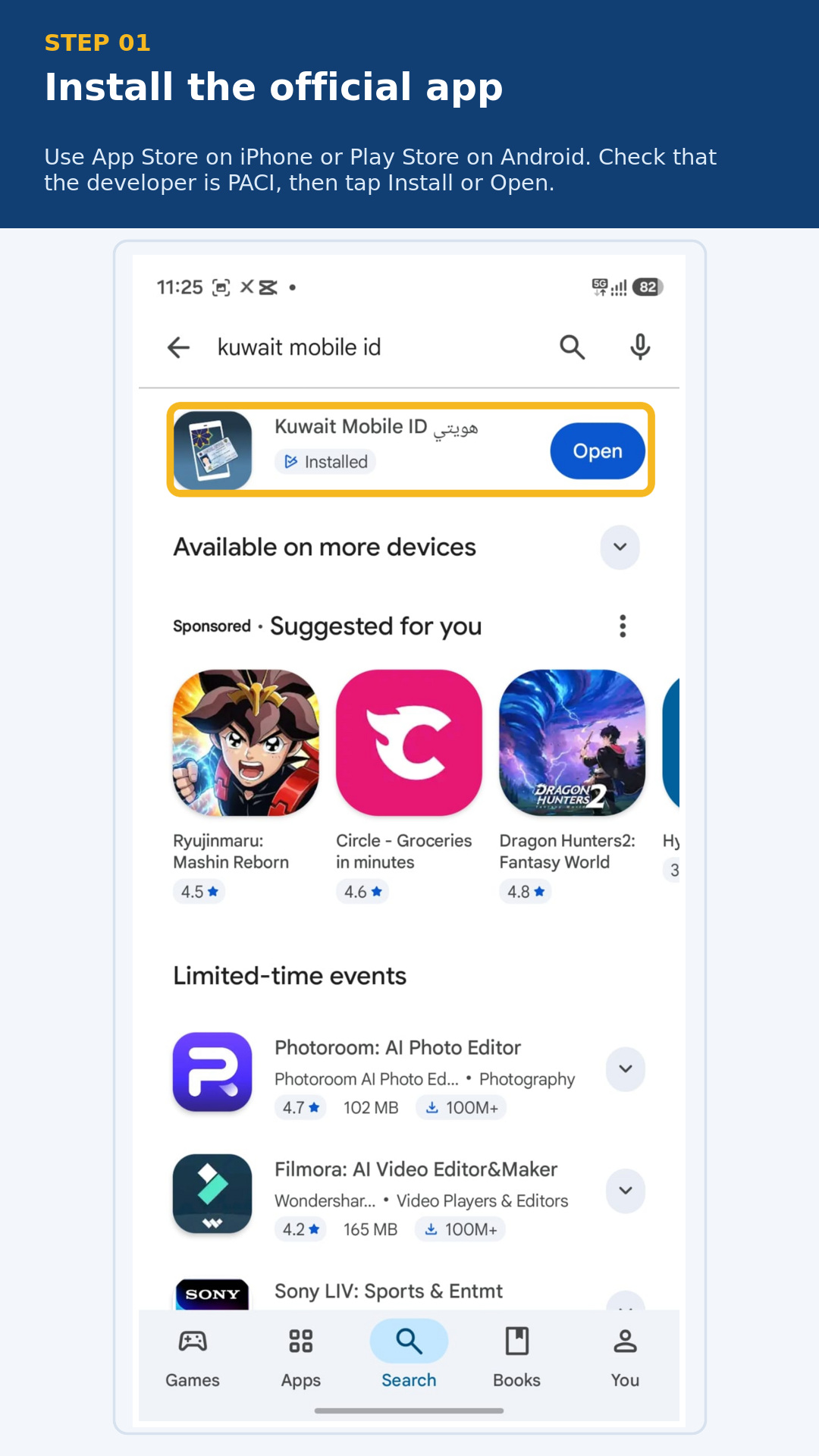
On an iPhone, open the App Store. On an Android phone, open the Google Play Store. Huawei phones without Google Play can use Huawei AppGallery.
Search for Kuwait Mobile ID هويتي. Before installing, confirm that the developer is the Public Authority for Civil Information (PACI). Avoid look-alike apps and advertisements.
You can also begin from PACI’s official Kuwait Mobile ID download page.
Step 2: Open the app and tap Get Started
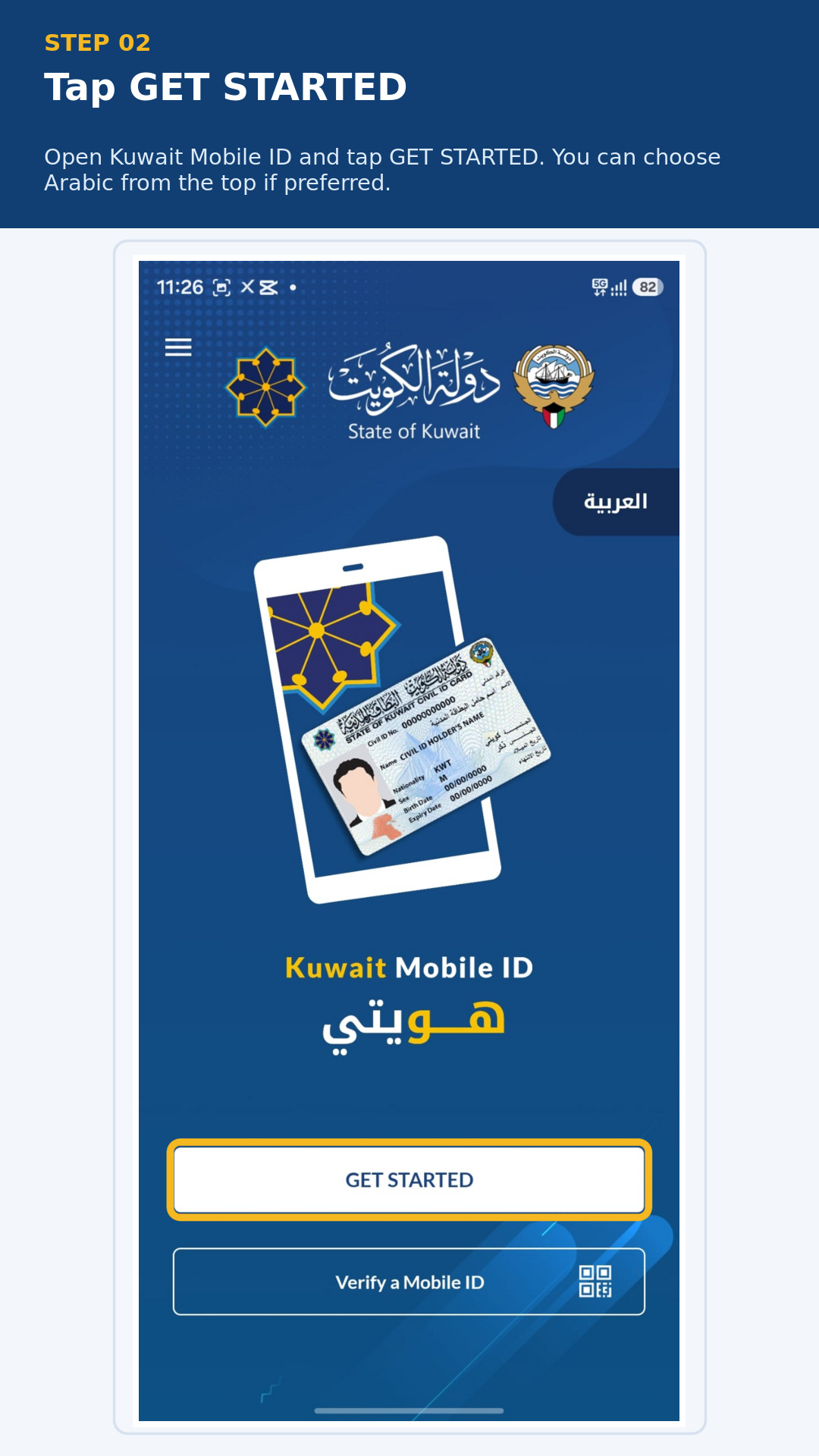
Open the app after installation. On the first screen, tap GET STARTED. If you prefer Arabic, use the Arabic option displayed near the top.
Step 3: Tap Next three times
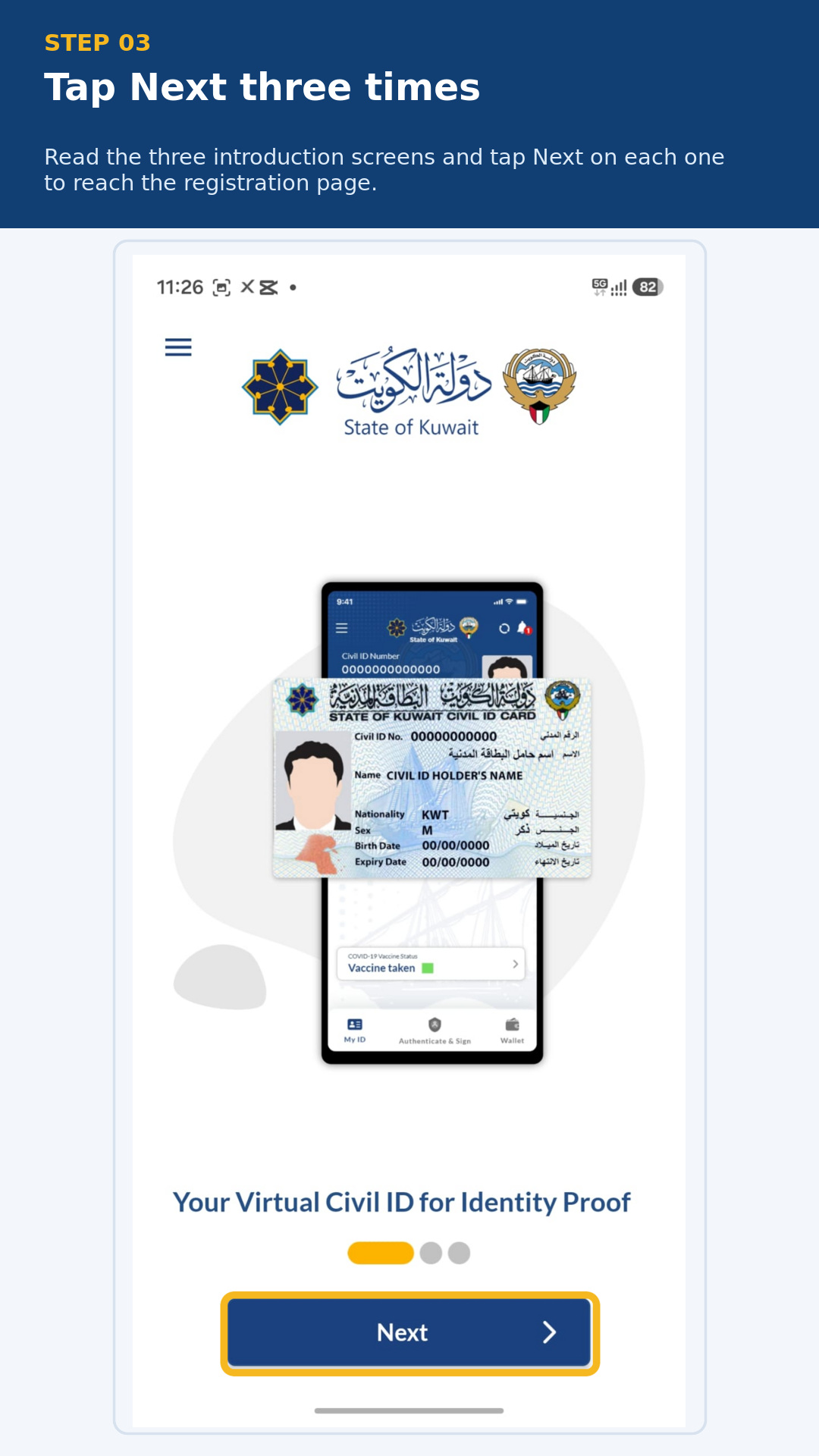
The app shows three introduction pages explaining the digital Civil ID, electronic services, and digital signing. Read them, then tap Next on each screen. You will tap Next three times in total.
Step 4: Choose Registration Through your Mobile Phone
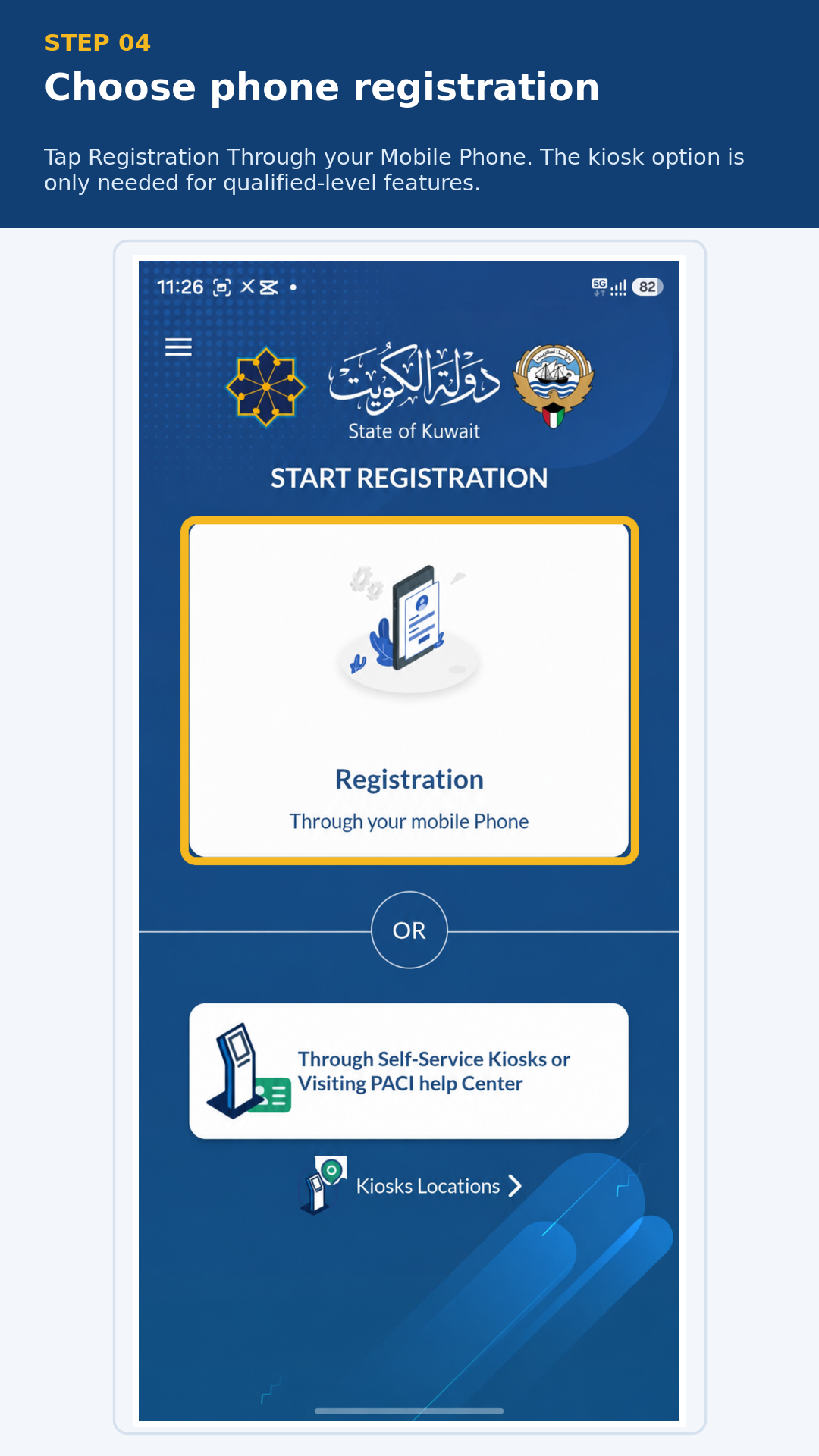
On the Start Registration page, tap Registration Through your Mobile Phone.
The kiosk or PACI Help Center route is mainly for people who need qualified-level features such as strong authentication or digital signature. Most newcomers can begin with phone registration.
Step 5: Scan the card or enter data manually
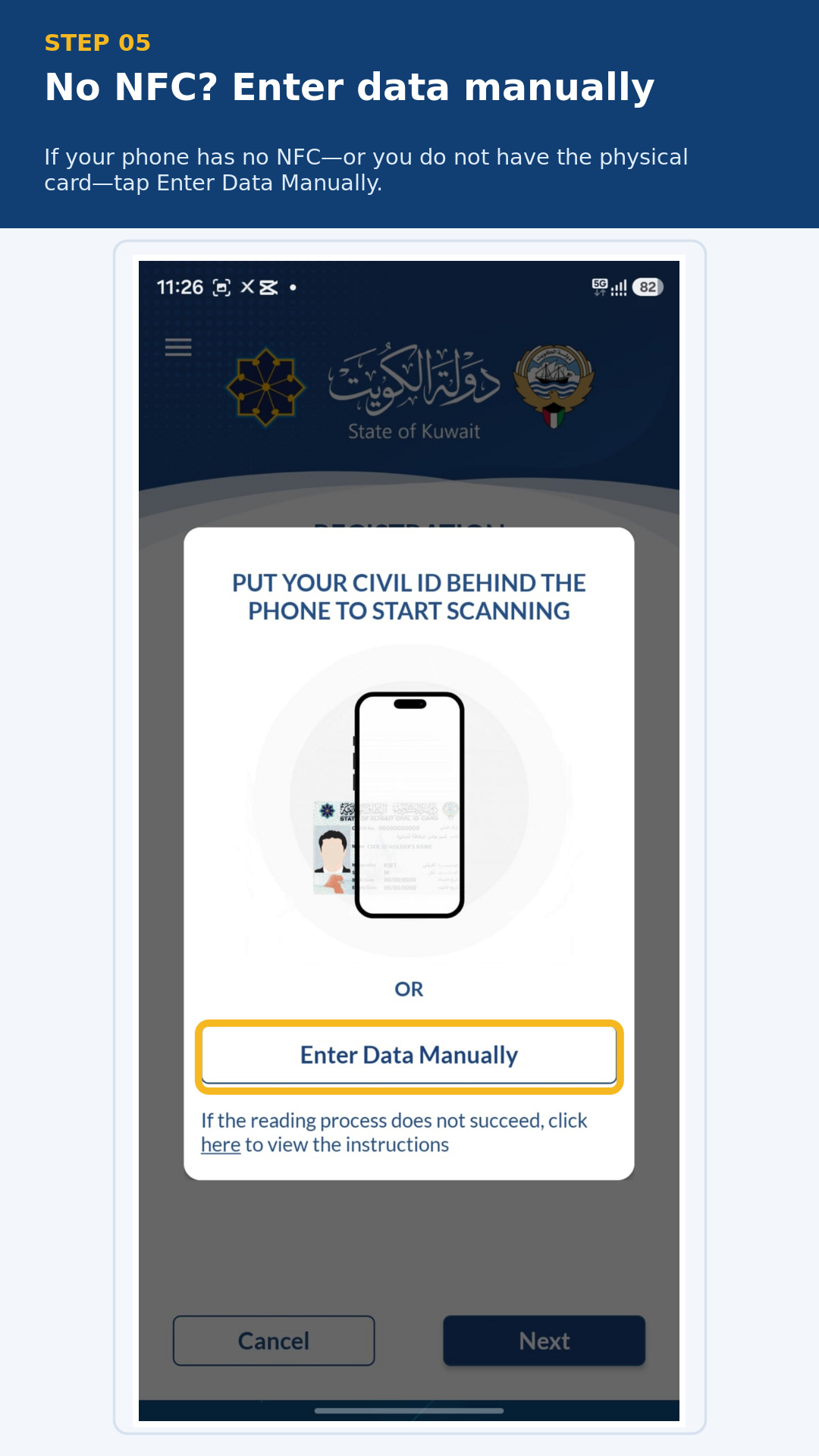
If your phone has NFC and you already have the physical Civil ID, place the card behind the upper part of the phone and allow the app to read it.
If your phone has no NFC, the scan fails, or your first physical card is not printed, tap Enter Data Manually. This is the main route used in this guide.
Step 6: Read the manual-registration notice
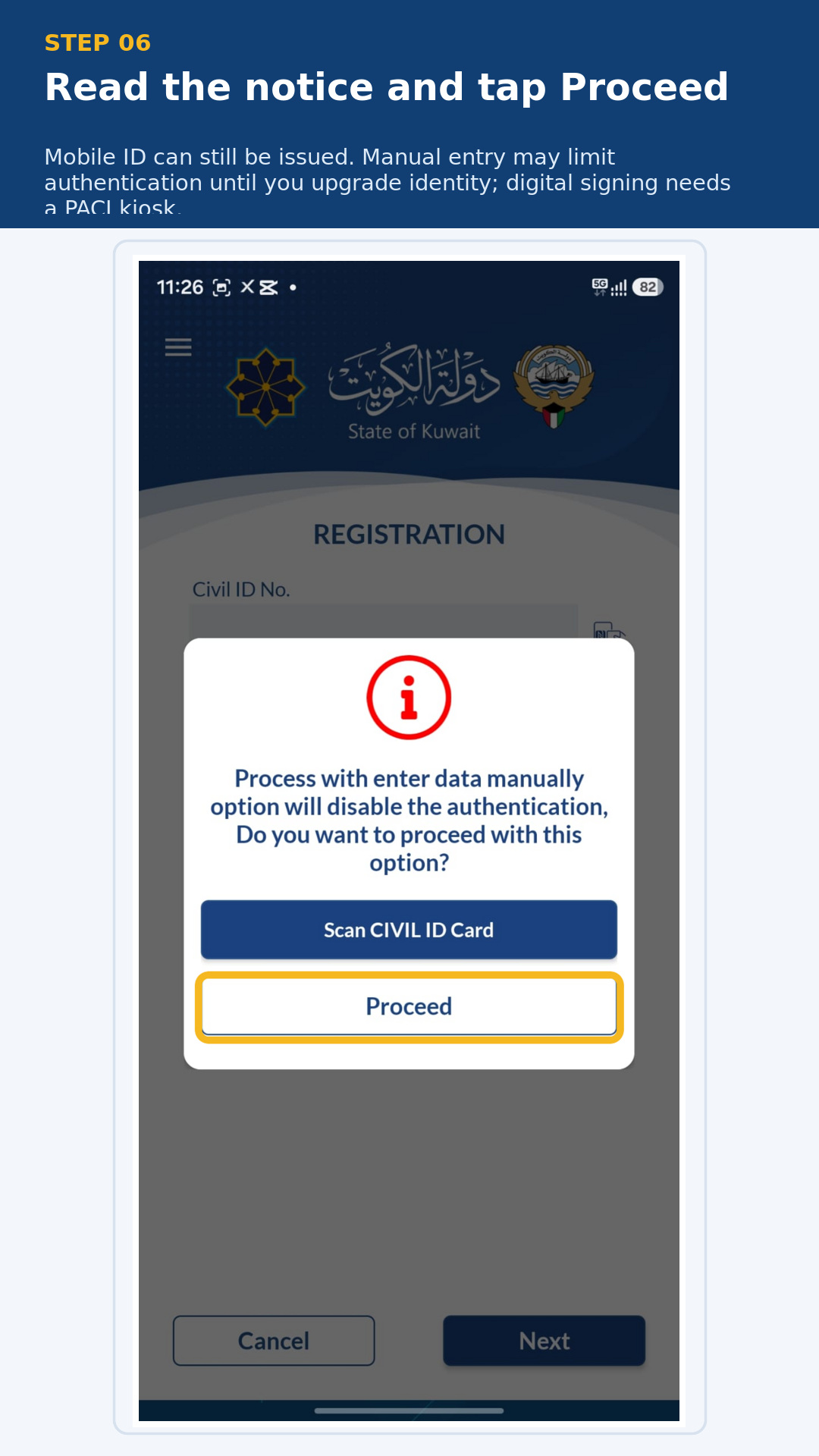
The app may warn that using manual entry will disable or limit authentication. Tap Proceed if you want to continue with the manual route.
Your Mobile ID can still be issued for identity use. If you later need authentication that is unavailable, check Upgrade Identity inside the app or follow PACI’s current instructions. Digital signature and strong-level authentication require qualified registration through a PACI kiosk.
Step 7: Enter the Civil ID and passport details
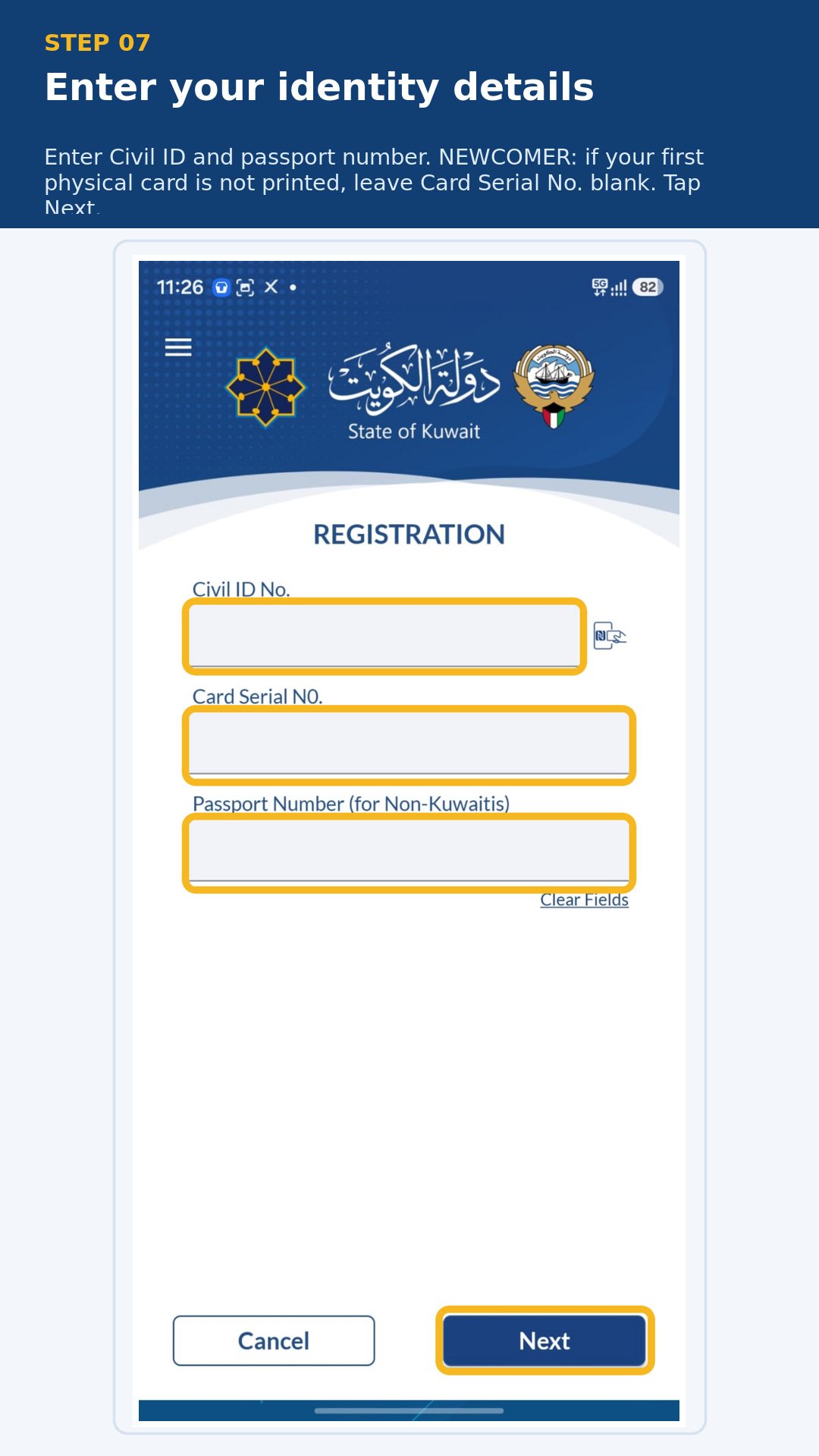
Complete the fields that apply to you:
- Civil ID No.: Enter the full 12-digit Civil ID number.
- Card Serial No.: If you have a printed card, enter its serial number when required. If you are a newcomer and your first card has not been printed, leave this field blank.
- Passport Number (for Non-Kuwaitis): Enter the same passport number stored in your official residency record.
Then tap Next.
Newcomer rule: Do not enter a random number in Card Serial No.. PACI’s FAQ says new residents without the first physical Civil ID can register without entering the card serial number.
Do You Need the Civil ID Card Serial Number?
The serial-number requirement depends on your situation:
- First Civil ID application: If you are a new resident and your first physical Civil ID has not been printed, try leaving Card Serial No. blank. If the app asks for a Mobile ID Serial Number, check the SMS received from PACI after paying the Civil ID issuance fee.
- Existing or renewed Civil ID: Enter the serial number from your current physical Civil ID when the app requires it.
- Returning resident: Based on practical experience in Kuwait, if you previously left Kuwait while an old Civil ID record remained linked to your residency, the app may request the serial number from the old card when you return and apply again.
- Serial number unavailable: Do not enter random numbers. If the correct information is rejected or the old card is unavailable, contact PACI or validate the residency information with the Ministry of Interior.
Important: Registering without a serial number mainly applies to eligible first-time Civil ID applicants. It does not mean every existing or returning resident can leave the field blank.
Step 8: Enter email and mobile number
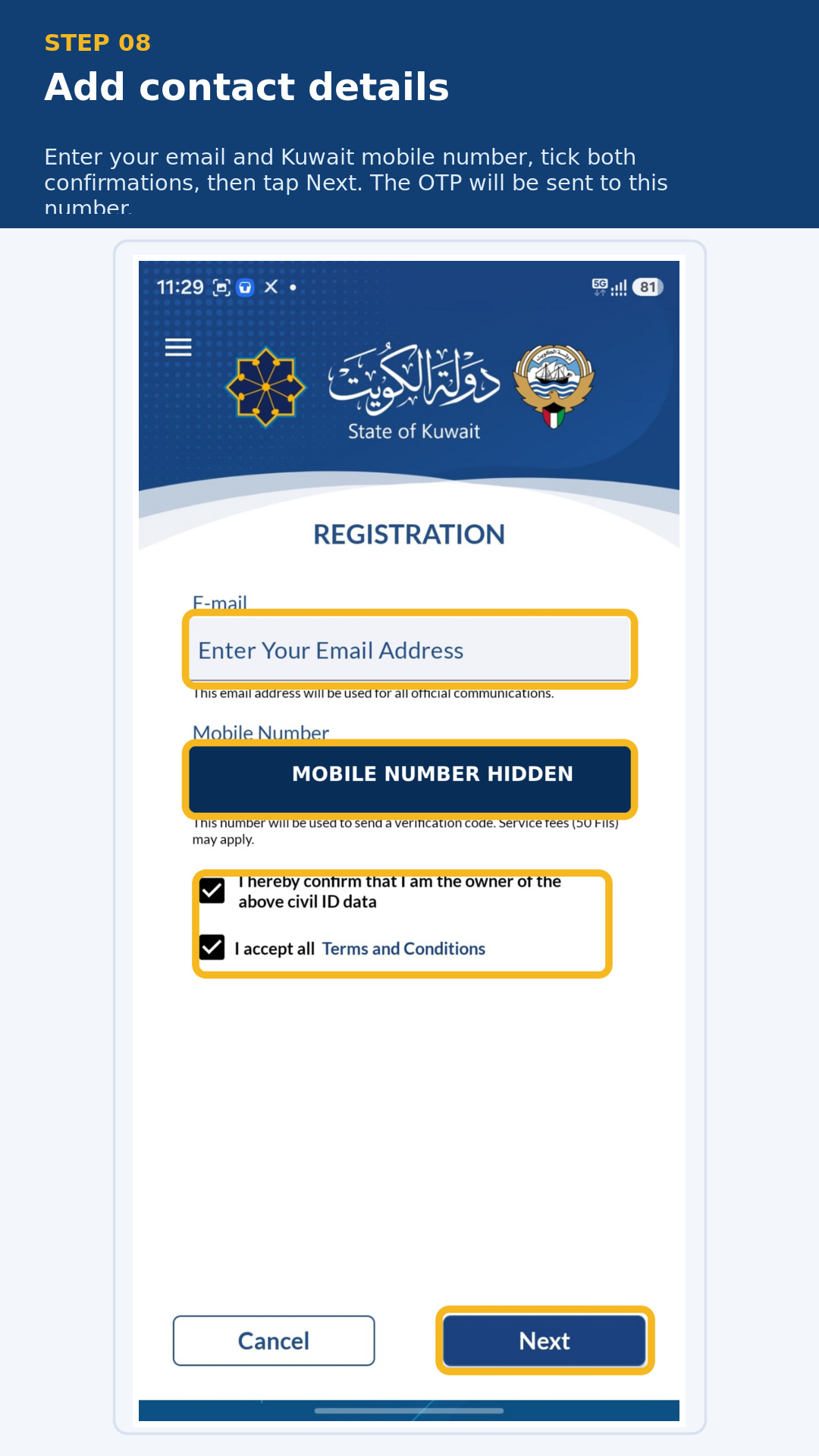
Enter an email address you can access and the Kuwait mobile number that should receive the verification SMS.
Select both confirmation boxes only after checking the details and reading the terms and conditions. Tap Next.
The app may show an SMS service fee notice. Follow the amount and instructions displayed on your own screen.
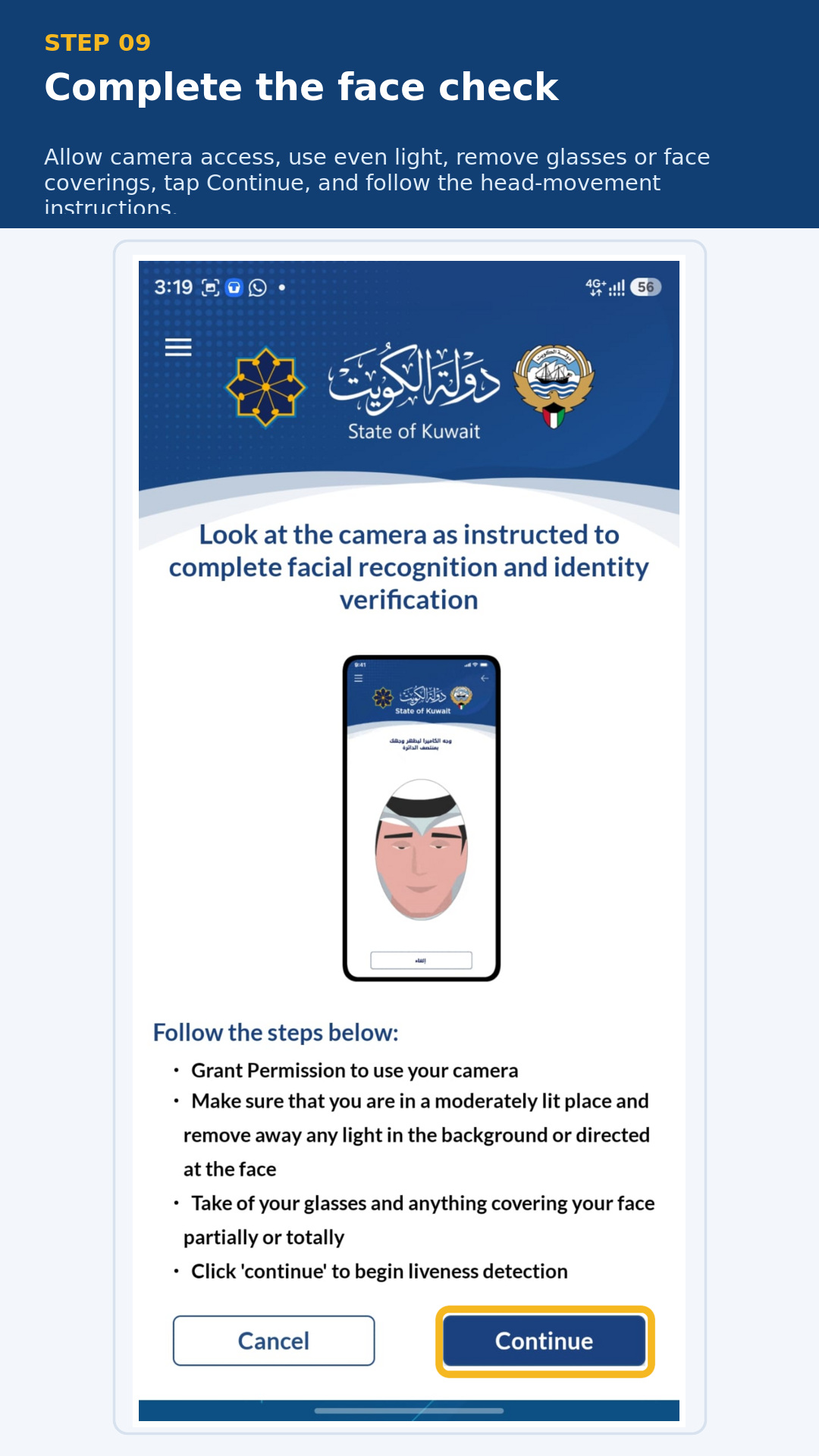
Step 9: Complete facial recognition
Allow the app to use the front camera. For the best result:
- Stand in even light without a bright window or lamp behind you.
- Clean the camera lens.
- Remove sunglasses, a mask, and anything covering the face.
- Keep the full face inside the guide on the screen.
- Tap Continue and move your head only as instructed.
Do not publish or send the facial-verification screen to other people.
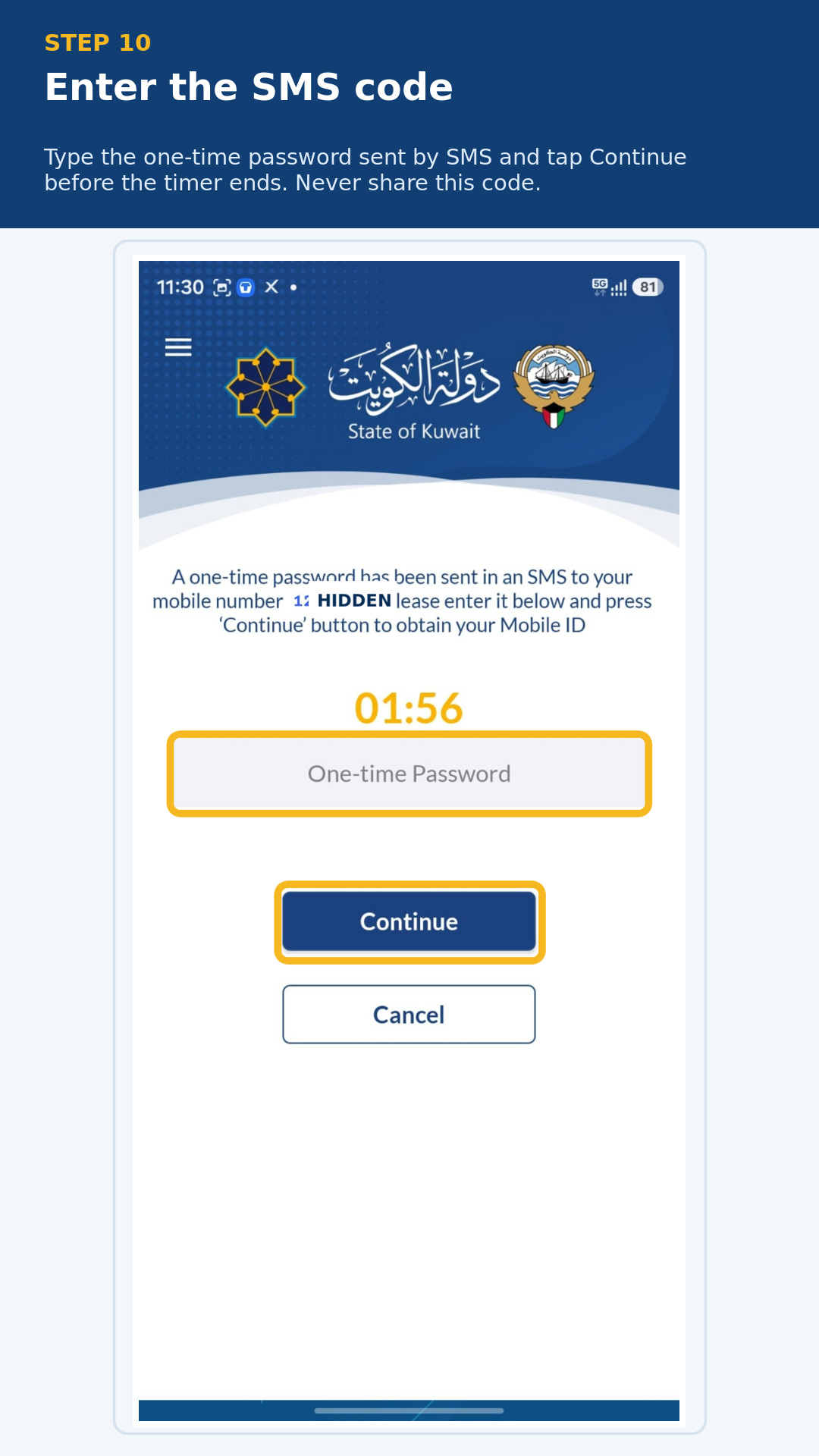
Step 10: Enter the one-time password
PACI sends a one-time password by SMS to the mobile number entered during registration. Type the code before the timer ends and tap Continue.
Security warning: Never send the OTP to a coworker, typing centre, agent, or anyone claiming to be support. The code should be entered only inside the official Kuwait Mobile ID app.
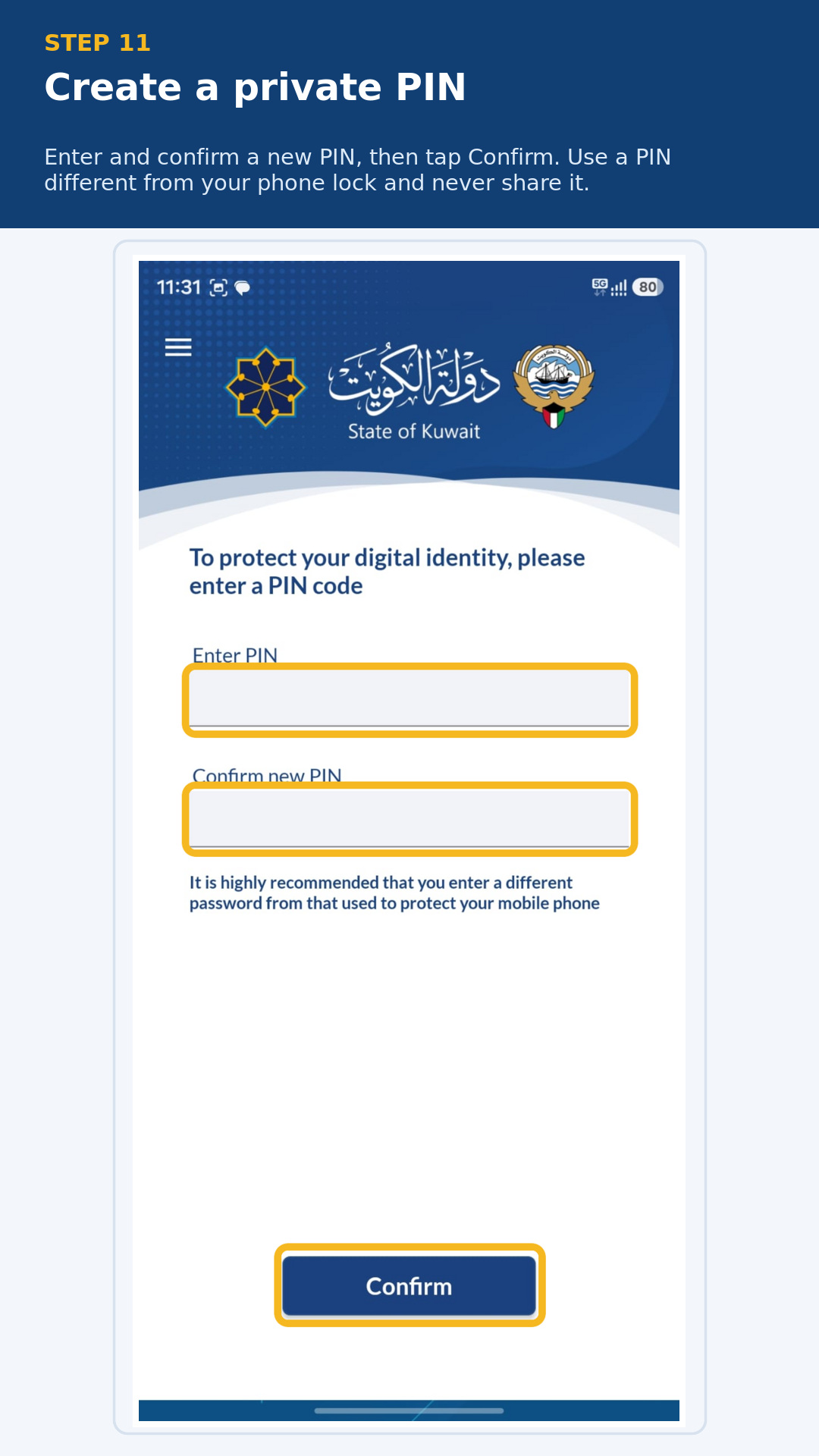
Step 11: Create the Mobile ID PIN
Create a PIN for Kuwait Mobile ID, enter it again in Confirm new PIN, and tap Confirm.
Use a PIN different from the phone’s unlock code. Do not use simple sequences such as repeated digits, and do not save the PIN in a public note or WhatsApp message.
Step 12: Confirm successful registration
When the message Mobile ID issued Successfully appears, tap OK. Your Kuwait Mobile ID is now available in the app.
Check that your name, passport number, nationality, and other displayed details are correct. If official data is wrong, PACI advises correcting the source record with the Ministry of Interior before updating or reissuing the Civil ID information.

What You Can Do After Registration
Depending on the registration and verification level, Kuwait Mobile ID can provide:
- A legal digital identity based on the Civil ID.
- Identity verification through supported services.
- Authentication requests from supported government and private services.
- A credential wallet for supported records.
- Online PIN reset for eligible phone registrations.
Strong authentication and digital signature are qualified-level features. PACI says these require a Mobile ID self-service kiosk.
Already registered but authentication is unavailable? Follow our step-by-step guide to upgrade Kuwait Mobile ID and enable authentication.
Troubleshooting
The app says the entered data is incorrect
Check every digit of the Civil ID and passport number. Use the passport number recorded in the Kuwait residency system. If the details are correct but the error continues, PACI advises validating the data with the Ministry of Interior.
If the code still does not arrive, follow our complete Kuwait Mobile ID OTP troubleshooting guide, including SIM checks, the Ooredoo *121# test, PACI sender names and official support steps.
The Card Serial No. field is confusing
- New resident and first card not printed: leave it blank and enter the passport number.
- Printed card available: enter the card serial number when the app requires it.
- NFC scan successful: the app may read the Civil ID, card serial, and passport details automatically.
The OTP does not arrive
Confirm that the mobile number is correct, the SIM has signal, and SMS is working. Wait for the current timer before requesting another code. Do not repeatedly request codes or share a code after it arrives.
Facial recognition keeps failing
Enable camera permission, move to even lighting, clean the lens, remove face coverings, keep the phone steady, and follow each movement slowly. Try again without other faces visible in the background.
The phone has no NFC
Use Enter Data Manually. NFC is helpful for reading a printed card but is not required for the newcomer route shown in this guide.
The app cannot be installed
Update the phone’s operating system and check available storage. PACI’s FAQ lists Android 8 or later, while the current iPhone App Store listing requires iOS 15.6 or later. Store requirements can change, so check the current official listing for your device.
Registration is complete but authentication is unavailable
Manual registration may leave authentication limited. Open the app menu and look for Upgrade Identity, then follow PACI’s current instructions. If the service requires strong authentication or digital signing, use a PACI Mobile ID self-service kiosk.
If authentication is unavailable after registration, follow our step-by-step guide to upgrade Kuwait Mobile ID and enable authentication.
Privacy and Safety
- Never share your OTP or Mobile ID PIN.
- Never publish an uncensored screenshot of the Mobile ID home screen.
- Hide the Civil ID number, name, face, passport number, address, employer, card serial, and QR code before sharing a screenshot.
- Do not approve an authentication request unless you personally started the related service.
- Install the app only from the official App Store, Play Store, AppGallery, or PACI download page.
- Only one Mobile ID can be active on a phone, and one person’s Mobile ID cannot be active on multiple phones at the same time.
- If changing phones, cancel Mobile ID on the old phone when possible, then register on the new phone.
Frequently Asked Questions
Can a newcomer register without receiving the physical Civil ID?
Yes. PACI’s FAQ says new residents issuing their first Civil ID can get Kuwait Mobile ID through Registration Through your Mobile Phone even before receiving the physical card.
Does a newcomer need the Card Serial No.?
No. PACI specifically says a new resident without the first physical card does not have to enter the card serial number. A non-Kuwaiti newcomer should enter the Civil ID and passport number requested by the app.
Can I register if my phone does not have NFC?
Yes. Tap Enter Data Manually and follow the steps in this guide.
Does manual registration give digital signature?
Manual registration creates the Mobile ID but does not itself activate electronic signature. PACI now provides a separate in-app activation mechanism. Follow the current electronic-signature instructions displayed inside the official Kuwait Mobile ID app.
Can I use the app on iPhone and Android?
Yes. The official app is available through Apple’s App Store and Google Play. PACI also provides an AppGallery option for supported Huawei devices without Google Play.
Can two people register Mobile ID on the same phone?
No. PACI says one smartphone can hold only one person’s Mobile ID. Supported children’s credentials can be added separately to the credential wallet where eligible.
Can I use Mobile ID outside Kuwait?
PACI says Mobile ID services can be used abroad, although the phone still needs the required internet or service connection.
What should I do if I forgot the PIN?
For eligible online registration, use Reset PIN, Forgot PIN, or Unlock PIN as displayed by the current app. Kiosk-enrolled identities may need a kiosk to unlock the PIN.
Final Reminder
For most newcomers, the correct path is simple: install the official PACI app, choose phone registration, use manual entry if there is no NFC or physical card, enter the Civil ID and passport number, leave Card Serial No. blank for the first unprinted card, complete facial verification, enter the SMS code, and create a private PIN.
Protect the Mobile ID as carefully as the physical Civil ID. Never share the OTP, PIN, QR code, or an uncensored screenshot.
Transparency
Sources & references
Reviewed and updated
Editorial information
SOAKJAM articles are designed for clarity, useful context and transparent sourcing. Important facts should be checked against the linked primary sources.
Found an error, outdated detail or a useful source we should consider?